

Install on macOS
Overview
This article explains how to run the Lumicast player on macOS.
The current player requires macOS 13 Ventura or later, on an Intel or Apple Silicon Mac. macOS 12 Monterey and older are not supported.
Install the player
Download the player
On the Lumicast downloads page, look for the macOS section. You'll see two downloads: arm64 .dmg for Apple Silicon and x64 .dmg for Intel.
Which version do I need?
Click the Apple menu:
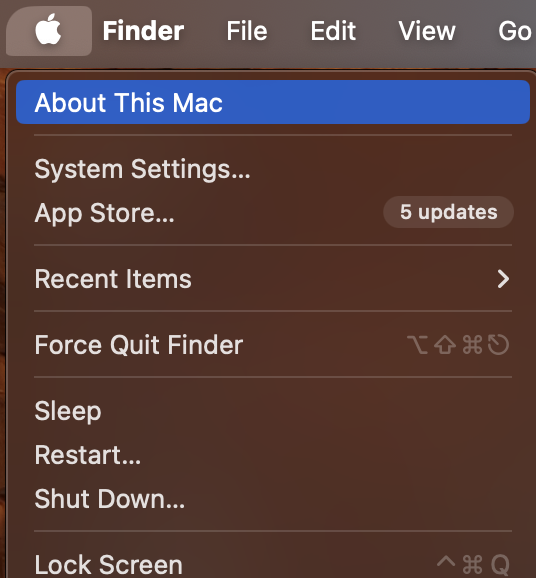
Click About This Mac:
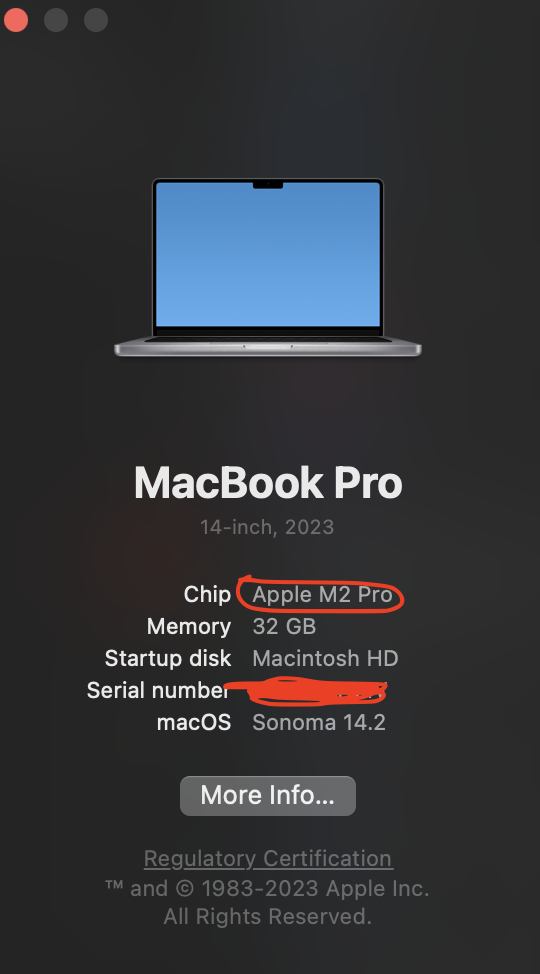
If you see an Apple chip (M1 or later), use the arm64 .dmg download. If you see an Intel processor, use the x64 .dmg download.
Use the downloaded player
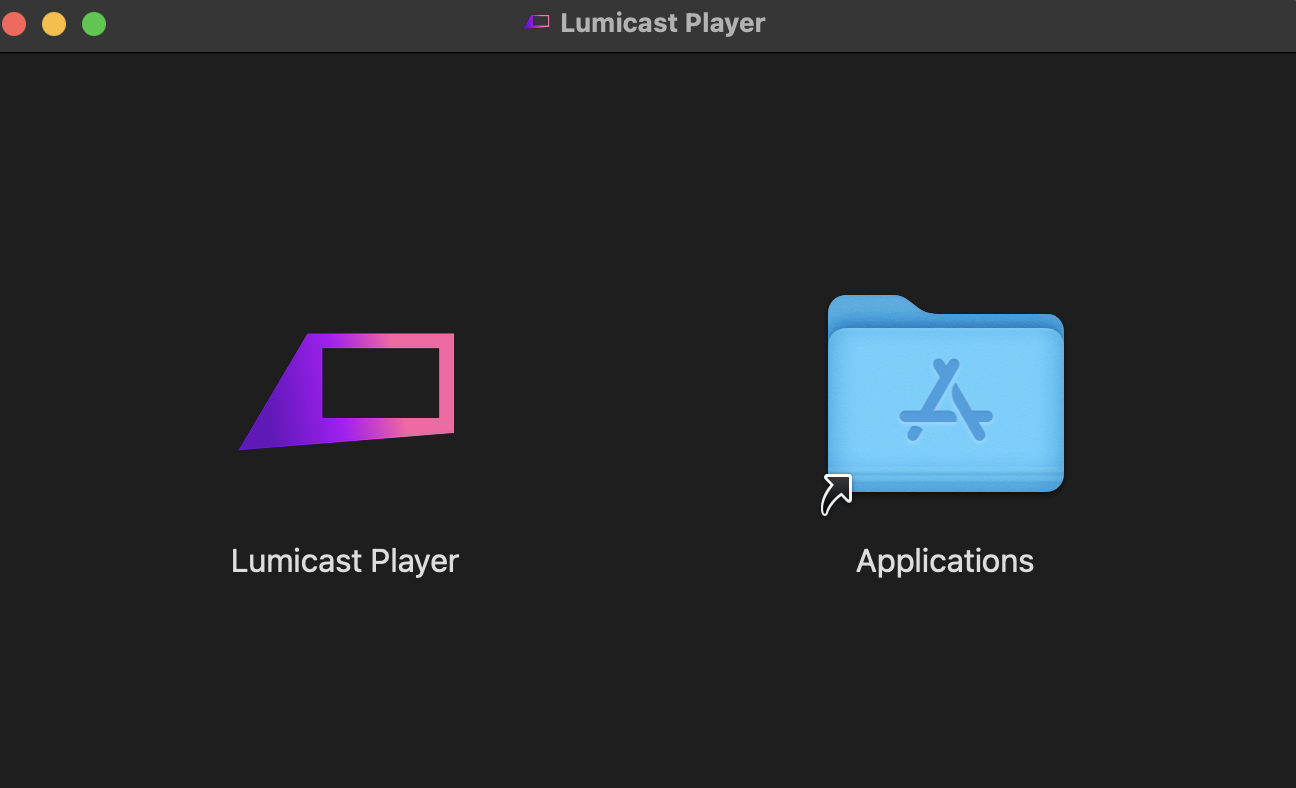
The download appears in your Downloads folder as lumicast-player-latest-<arm64 or x64>-mac-<version>.dmg. Double-click it and drag the Lumicast player into Applications:
You may see a security prompt:
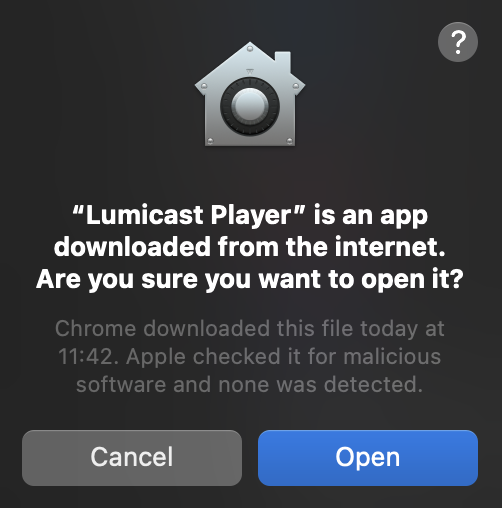
Choose Open.
To launch the player, press ⌘ + Space and search for Lumicast Player.
Keep your display always on
- Open System Settings from the Apple menu.
- Click Lock Screen. Set Start Screen Saver when inactive and Turn display off when inactive to Never (on a MacBook: Turn display off on power adapter when inactive).
- Type
sleepingin the search field of System Settings and turn on Prevent automatic sleeping when the display is off (on a MacBook: Prevent automatic sleeping on power adapter when the display is off).