

Connect a Display
A display in Lumicast stands for a physical device with a screen. Once paired, Lumicast controls what it shows — from anywhere.
Step 1 — Get the player running on your device
You need the Lumicast player running on the physical device. There are two ways to do this:
Browser (quickest) — Open player.lumicast.com in any browser on the device. A pairing code appears immediately. No installation needed.
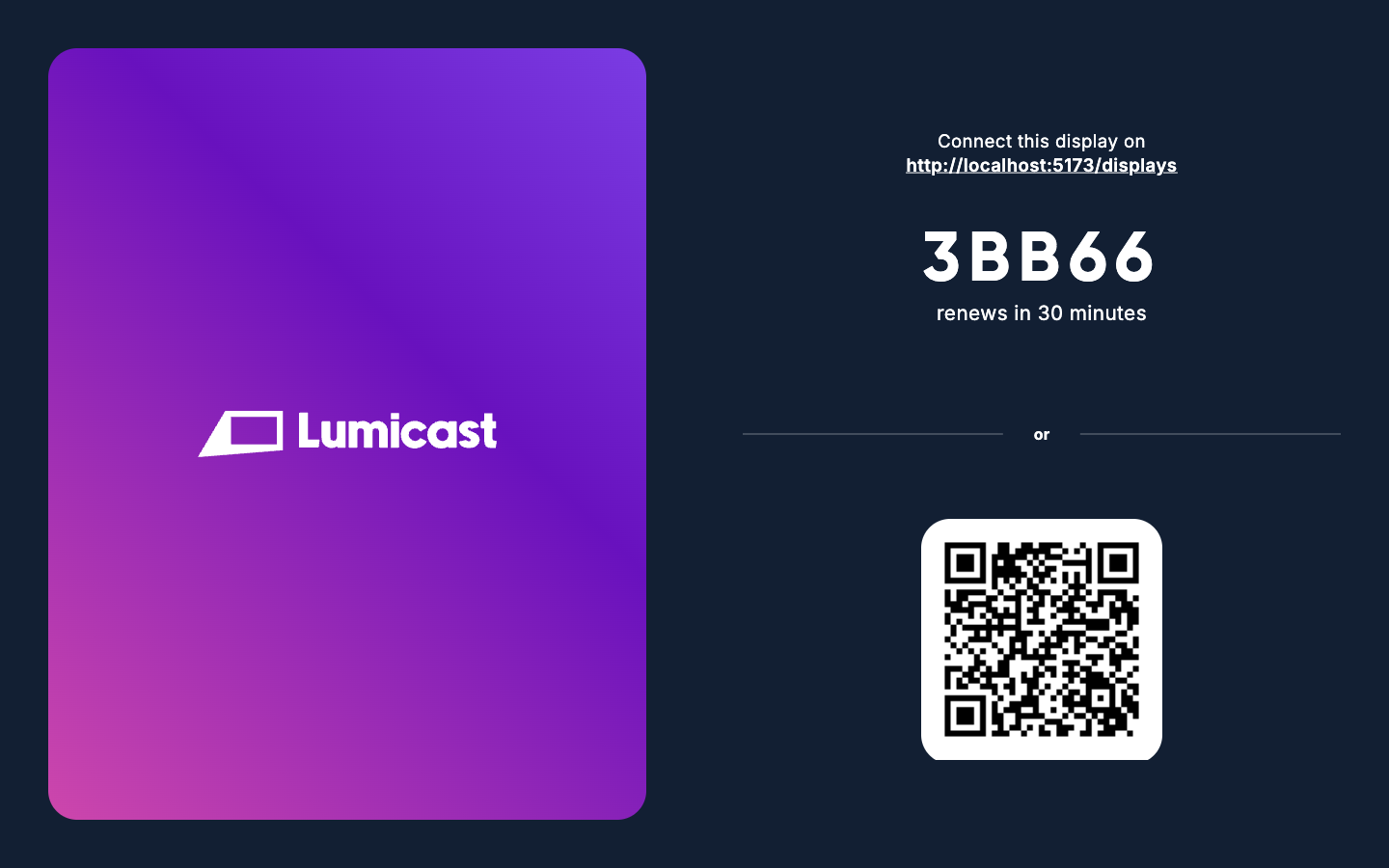
Native app (recommended for permanent installs) — Download and install the dedicated player for your hardware. Native apps start automatically when the device powers on and support remote management. See the Player overview for supported platforms and download links.
Step 2 — Connect the display in Lumicast
In Lumicast, go to Displays and click Add → Connect display (if you don't have any displays yet, click Connect display directly). Keep Pairing code selected as the connection method.
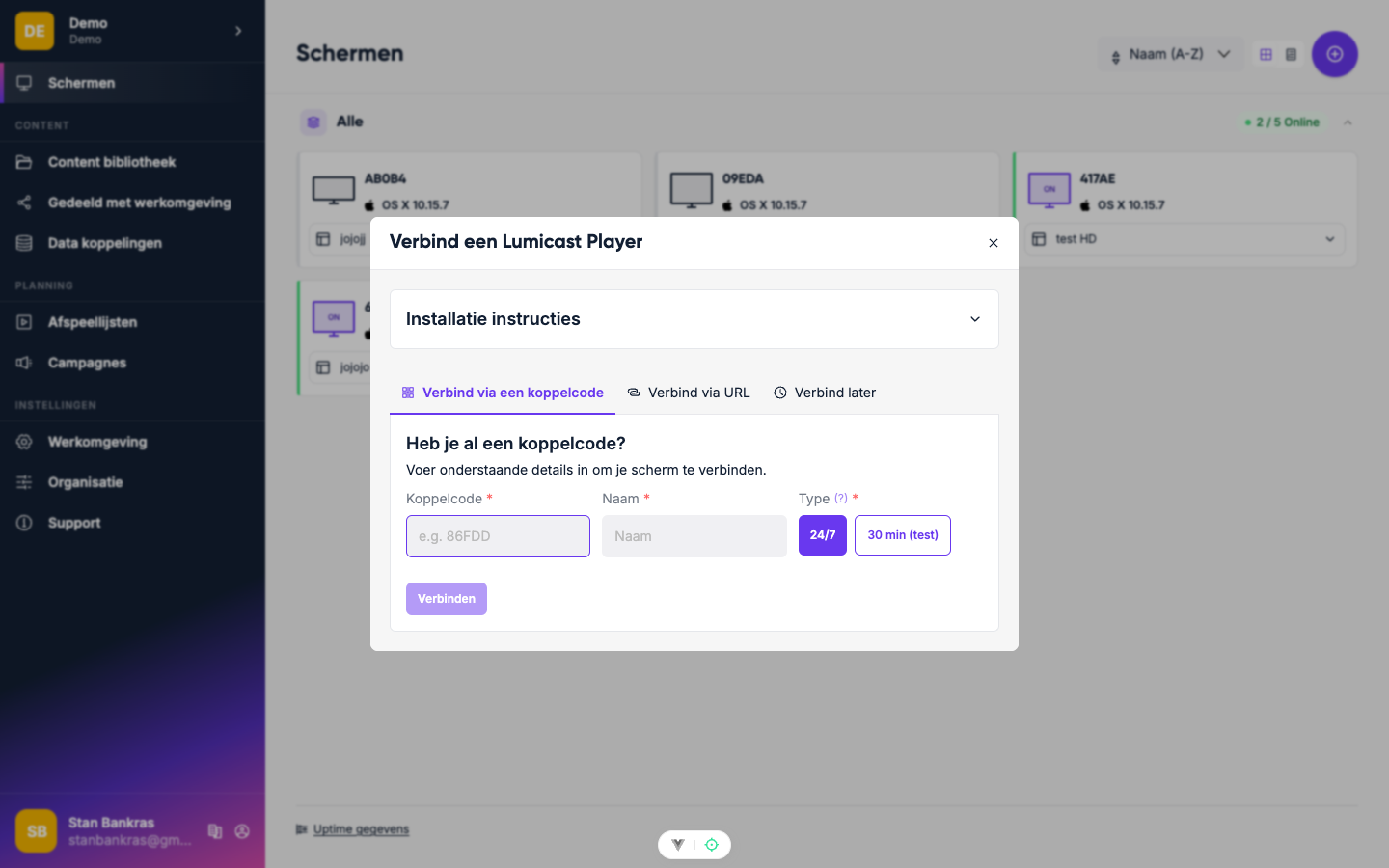
Fill in:
- Name — something you'll recognise it by (e.g. "Reception" or "Floor 2 Left")
- Code on your display — the pairing code the player shows
- How will you use it? — Try it out (a free test display that stops after 30 minutes) or Live (runs 24/7, billed as part of your plan)
Click Connect. The display goes online immediately.
Step 3 — Assign content
The display shows nothing until you assign content. In the Displays list, open the display's actions menu (or open the display itself) and click Set content. A picker opens — click Choose next to a playlist, page, app, or media item.
Troubleshooting
Display shows offline — check that the player is open and the device has internet access.
Pairing code not working — the code renews itself after a while (the player shows when). Make sure you type the code that is on the display right now.
Display not appearing in the list — make sure you're in the correct workspace.