

Workspace Settings
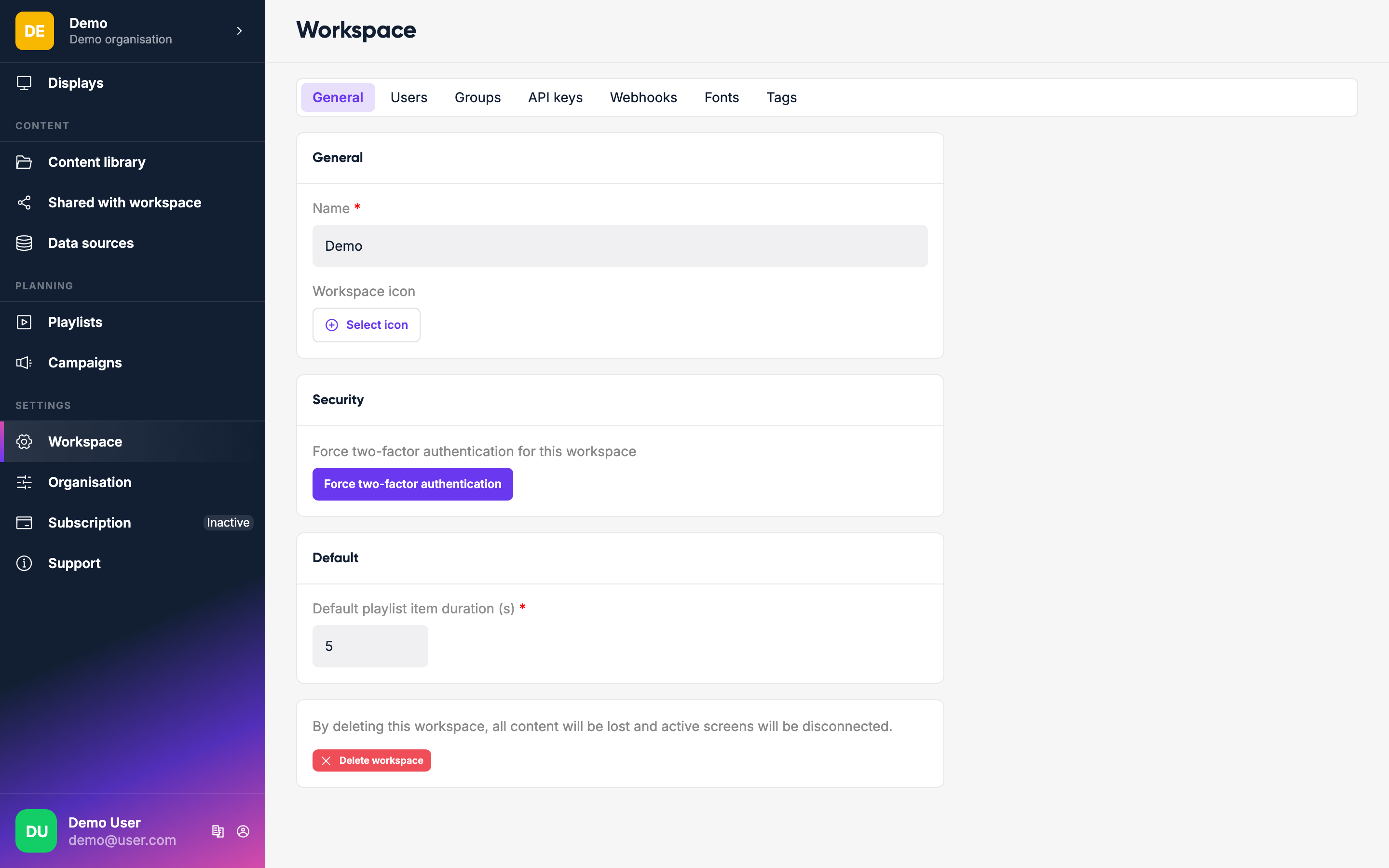
Workspace Settings (in the main navigation, under Settings → Workspace) is where you configure a workspace: its API keys, webhooks and display tags. People, roles and fonts belong to the whole organisation, so they live under Organisation in the same settings menu; they are covered below too.
Users
Everyone in your organisation is managed from one place: Organisation → Users. Click Invite user, enter their email address and pick an access type:
- Member: works only in the workspaces you give them access to.
- Billing: manages the subscription and invoices, and can also be given workspace access.
- Admin: full access to every workspace, plus users, workspaces, branding and billing.
- Owner: everything an admin can do, plus sub-organisations and appointing other owners.
For members and billing users, choose their workspace access: an All workspaces row that applies everywhere (including workspaces created later), plus one row per workspace to give more there. Each row takes one role or custom permissions, and a Workspace admin tickbox gives full access to that workspace.
Workspace admins open the same page and see the people of the workspaces they administer; they can invite colleagues and change access to those workspaces only.
Invited users receive an email with a link to accept. Pending invites show a Pending tag until accepted.
Roles
Roles are named sets of permissions that your organisation defines once under Organisation → Roles. Every organisation starts with three: View only, Editor and Full access, which you can change, rename or delete like any other. When you give someone access to a workspace you pick one of these roles for them. Changing a role changes it for everyone who has it. A role that is still given to someone cannot be deleted; change their access first.
API Keys
Generate API keys for programmatic access to Lumicast. Go to Workspace → API keys and click Create API key. Give it a name and permissions, click Create, and copy the key: it's only shown once.
API keys are useful for integrating Lumicast with other tools or automating content updates. See Manage API Keys for step-by-step instructions.
Webhooks
Set up webhooks to receive notifications when things happen in your workspace (e.g. when a playlist is published or a display is updated). Go to Workspace → Webhooks, click Create webhook, add a URL, and choose the events you want to receive.
See Webhooks for payload formats, signing, retries, and the full event reference.
Fonts
Upload custom fonts to use in your pages. Go to Organisation → Fonts, click Add font, and upload a file per weight + italic variation (TTF, OTF, WOFF, or WOFF2). The font then appears in the page editor's font selector.
Tags
Create display tags for organizing and targeting your displays. Go to Workspace → Tags and click Create tag. Apply tags to displays on each display's General tab, then use them when targeting campaigns.
See Tags for how tags work with displays and campaigns.