

Content Library
The Content section is where all your media and content lives. You can organize it into folders and use it across playlists, campaigns, and pages.
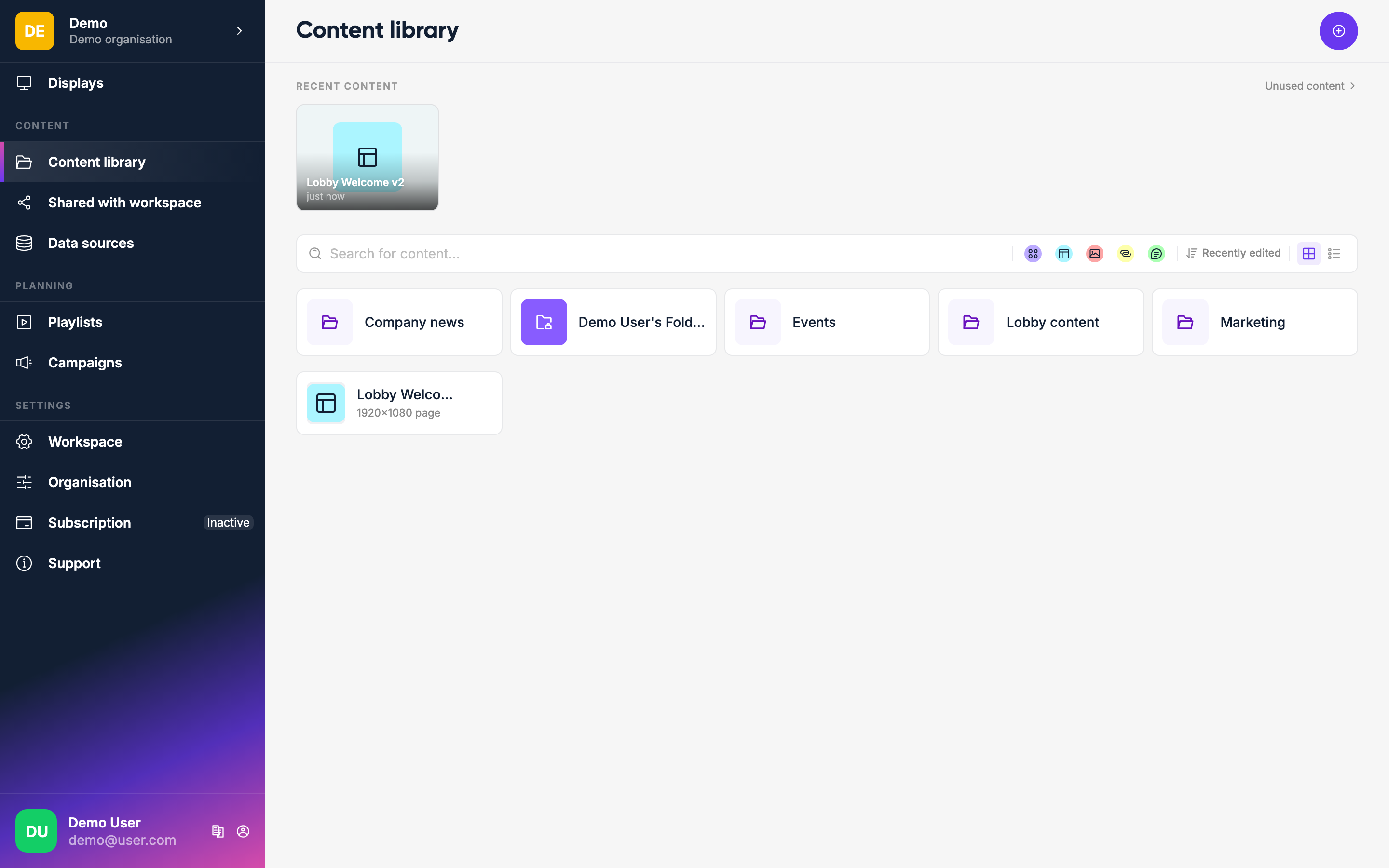
Content types
| Type | What it is |
|---|---|
| Media | Images, videos, and audio files you upload |
| Page | A layout you design yourself using the page editor |
| Message | Deprecated. A text item. Use a Page instead. |
| Link | A webpage shown on your displays |
| App | A ready-made app such as weather, news or a calendar |
Playlists and campaigns aren't part of the library: they have their own sections in the sidebar.
Adding content
Click Add at the top right to see all the types of content you can create.
Uploading media
Choose Upload media from the Add menu and select files from your computer, or drag files straight into the library. You can upload JPEG, PNG, GIF, SVG and HEIC images, MP4 videos and MP3 audio. Images and videos appear in the library once processing is complete. Large video files may take a moment to process.
Folders
Keep your library organized by creating folders. Choose New folder from the Add menu, name it, and drag items in — or use Move content from an item's menu.
Searching and filtering
Use the search bar at the top of the content page to find items by name. You can also filter by content type with the buttons below the search bar.
Content details
Click the ⋮ menu on any item (or right-click it) to:
- Rename it
- Move it to a folder
- See where it's used, under Content information
- Duplicate it
- Delete it
Messages
Deprecated
Text messages are deprecated and will be removed in a future release. Use the Page Editor to create text-based layouts instead.
Messages are text items filled in from a message template. Existing messages keep playing for now; design anything new as a page.
Shared content
If another workspace shares content with yours, a Shared with workspace folder appears at the top of the library. Open it to see everything shared with you.
Unused content
On the Content page, click Unused content (next to Recent content) to find items that aren't on any display, playlist, campaign or page — useful for cleaning up.