

Set up an Android display as a dedicated signage device
Android TVs and boxes can run Lumicast as a normal app, or as a dedicated signage device: Lumicast becomes the device owner, which lets it manage the display on its own. Use this for every display that runs unattended.
It takes about 15 minutes per display, plus a computer on the same network for one step.
What a dedicated display does
- Starts Lumicast when it powers on. No Launch on boot setting needed.
- Installs Lumicast updates by itself. No prompts, whether at start-up, every night between 02:00 and 05:00, from the menu, or from Upgrade in the dashboard.
- Stays on Lumicast. Home, Recents, notifications and the remote's Settings and Apps buttons do nothing, so nobody can leave the player by accident. On purpose you still can: Android settings in the Lumicast menu opens the display's own Android settings, with everything in them, and Back returns to Lumicast.
- Comes back by itself. If Lumicast stops unexpectedly it's back within about a minute. If someone leaves the display in the Android settings, it's back after about 15 minutes.
- Keeps the display awake. It never drops into the screensaver, and the TV's energy saver can't switch it off after hours without remote use.
- Installs Android system updates only between 02:00 and 05:00, so a system update never restarts the display during the day.
- Can be rebooted from the dashboard.
Before you start
- An Android TV, Google TV or Android box. This guide was written on a Sony BRAVIA FW-43BZ30L (Google TV, Android 12). Menu names differ a little per brand.
- No Google account on the display. Android only accepts a device owner on a device without accounts. On a display that's already in use, that usually means a factory reset.
- The Lumicast APK, not the Play Store or Fire TV app. Only the APK can become device owner.
- A computer (Windows, macOS or Linux) on the same network as the display.
WARNING
Undoing this takes a factory reset of the display. See Android settings, unlocking and undoing.
1. Reset the display and skip the Google account
- Go to Settings > System > About > Reset > Factory reset and confirm.
- Go through the setup again and connect to your network:
- Google TV: choose Set up basic TV instead of signing in with Google.
- Android TV: choose Skip when asked to sign in.
Already set up without an account? Then you can skip the reset. Check that Settings > Accounts and sign-in says No accounts, and that there's only one profile on the display.
2. Install Lumicast
Install the Lumicast APK as described in Sideload the Lumicast Player APK, steps 1 to 3. You don't need to enable Launch on boot; a dedicated display starts Lumicast by itself.
3. Turn on ADB debugging
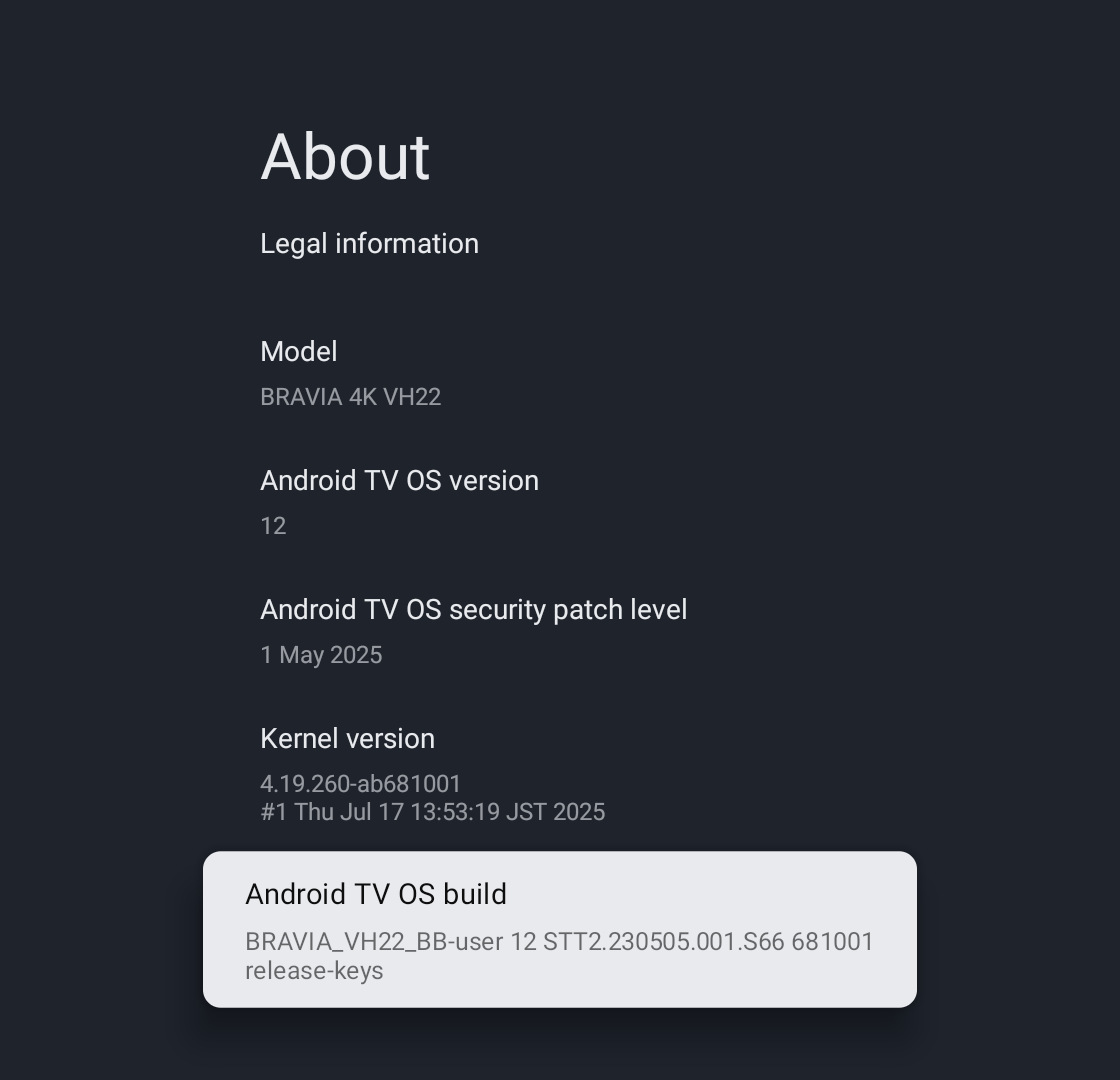
Go to Settings > System > About.
Select Android TV OS build seven times, until you see You are now a developer. On older Android TV models this is Settings > Device Preferences > About > Build.
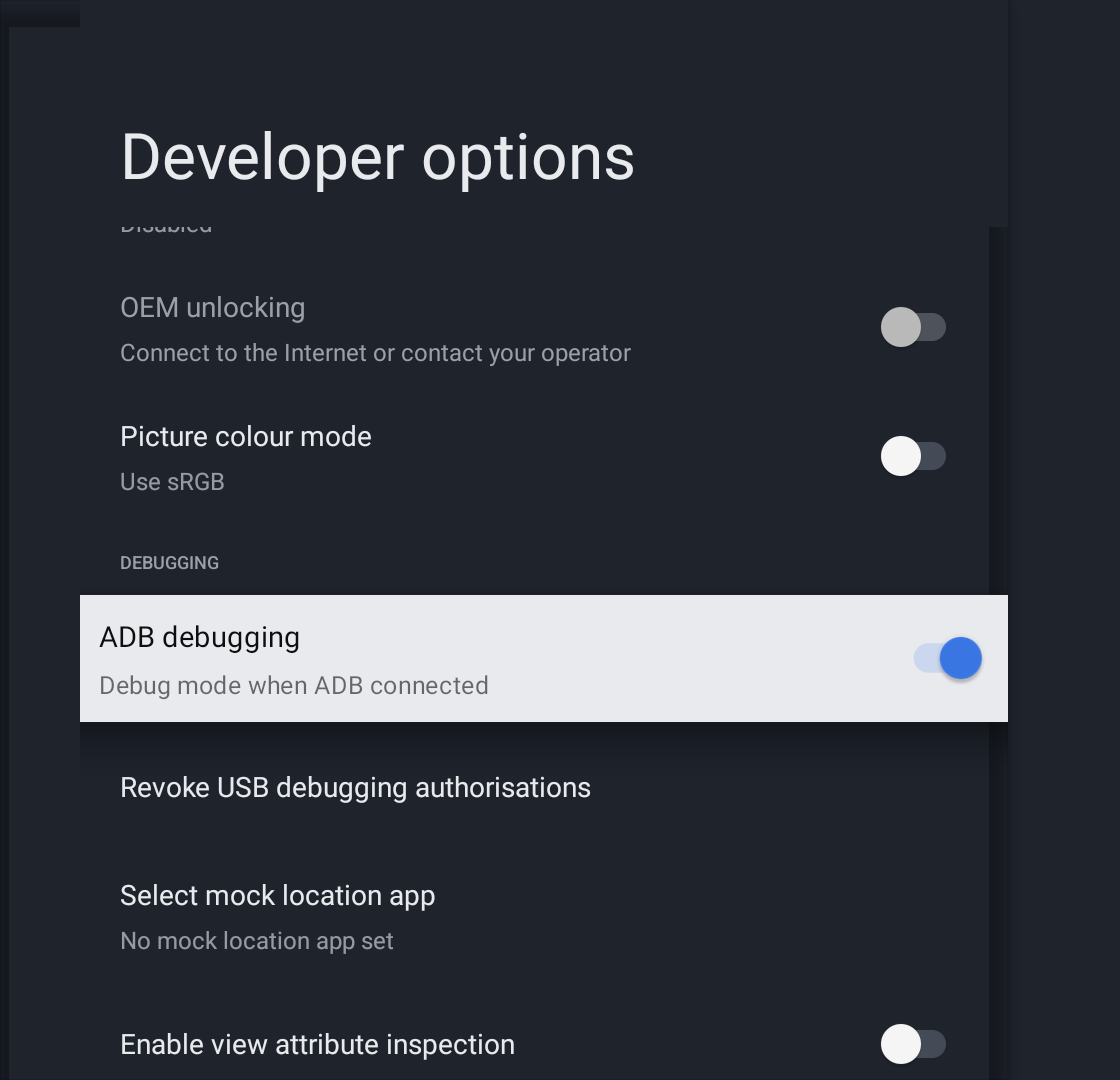
Go back to Settings > System, open Developer options (at the bottom of the list) and turn on ADB debugging. Depending on the brand it may be called USB debugging or Network debugging.
4. Note the display's IP address
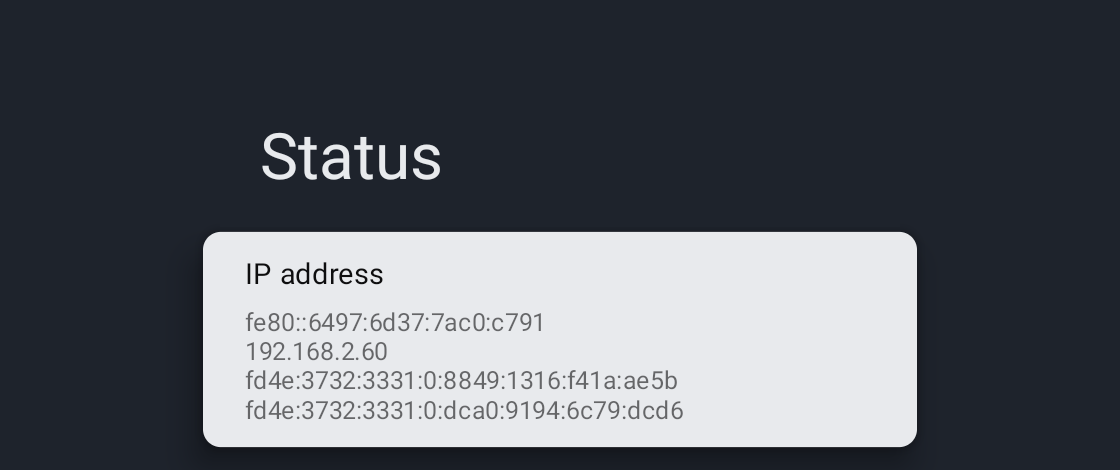
Go to Settings > System > About > Status. Note the address that looks like 192.168.x.x or 10.x.x.x. The examples below use 192.168.1.50; use your display's address instead.
5. Get ADB on your computer
ADB is Google's tool for talking to Android devices.
- macOS: with Homebrew, run
brew install android-platform-toolsin Terminal. Or use the ZIP below. - Windows, macOS or Linux: download SDK Platform-Tools for your system from developer.android.com/tools/releases/platform-tools and unzip it.
- Windows: open the unzipped
platform-toolsfolder, right-click an empty spot and choose Open in Terminal. - macOS: right-click the
platform-toolsfolder and choose New Terminal at Folder.
- Windows: open the unzipped
TIP
When you run ADB from the platform-tools folder, type .\adb (Windows) or ./adb (macOS and Linux) wherever the commands below say adb. With Homebrew, plain adb works.
6. Make Lumicast the device owner
Connect to the display:
bashadb connect 192.168.1.50On the display, a prompt asks Allow USB debugging?. Tick Always allow from this computer and choose Allow, so this computer can reconnect later without the prompt.
Check the connection:
bashadb devicesThe display is listed as
192.168.1.50:5555 device. If it saysunauthorized, accept the prompt on the display and runadb devicesagain.Make Lumicast the device owner:
bashadb shell dpm set-device-owner com.lumicast.player.direct/com.lumicast.player.DeviceOwnerReceiverIt answers with
Active admin set to component com.lumicast.player.direct/com.lumicast.player.DeviceOwnerReceiver. Anything else: see Troubleshooting.Optional check: Settings > Accounts and sign-in now says This device is managed by your organisation.
You can leave ADB debugging on for remote support, or turn it off later under Android settings in the Lumicast menu.
7. Open Lumicast and connect the display
Open Lumicast, or restart the display. From now on the display stays on Lumicast: pressing Home does nothing.
Connect the display to Lumicast as usual.
Troubleshooting
| Message | What to do |
|---|---|
failed to connect or Connection refused | Check the IP address, that ADB debugging is on, and that the computer and display are on the same network. |
unauthorized | Accept Allow USB debugging? on the display (step 6.2). |
Not allowed to set the device owner because there are already some accounts on the device | A Google or other account is signed in. Remove it under Settings > Accounts and sign-in, or factory reset and choose Set up basic TV (step 1). |
Not allowed to set the device owner because there are already several users on the device | Remove the extra profiles from the display, or factory reset. |
Unknown admin: ComponentInfo{com.lumicast.player.direct/…} | The Lumicast APK isn't installed. The Play Store and Fire TV apps can't become device owner: uninstall them and install the APK (step 2). |
Trying to set the device owner, but device owner is already set | This display is already set up. Nothing to do. |
Android settings, unlocking and undoing
Android settings. Open the Lumicast menu (press OK on the remote) and choose Android settings. Everything is there, from Wi-Fi to Developer options and Reset. Back returns to Lumicast.
Unlock completely. To also get Home and the other apps back, for example for a longer maintenance session, unlock the display from a computer authorized in step 6:
adb connect 192.168.1.50
adb shell am broadcast -n com.lumicast.player.direct/com.lumicast.player.StopKioskReceiver
The display is then an ordinary Android display until Lumicast restarts, for example after a reboot.
Stop using it as a dedicated display. Factory reset it: Lumicast menu > Android settings > System > About > Reset. Removing device owner without a reset isn't possible.