

Zermelo rooster app
Automatically show your school's schedule (and changes) on your displays.
What is Zermelo?
Zermelo is a Dutch company that provides schools with software tools for organizing data, including schedule management.
Creating a Zermelo rooster app
Go to Content > Add > New app and search for the Zermelo Schedule app.
Click the app to start creating a new app:
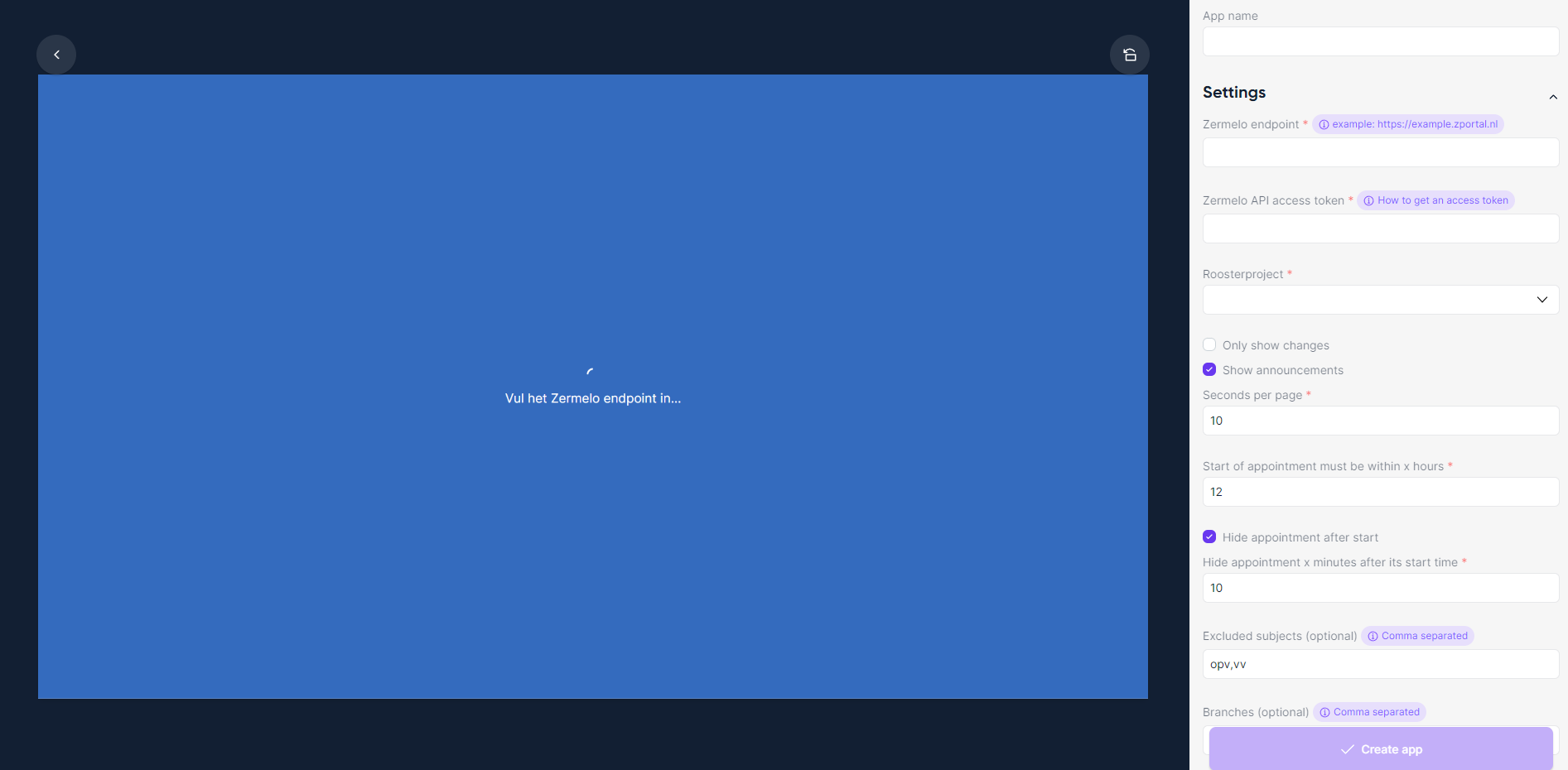
Enter an app name.
Under Data, find Schedule and pick your Zermelo schedule data source with Choose existing, or click New datasource to create one. No Zermelo connection yet? See How do I connect Zermelo? below.
Click Create app.
How do I find my Zermelo endpoint?
Contact someone in your organisation who works with Zermelo. The URL they log in with (usually https://<schoolname>.zportal.nl) is the portal address you enter as Base URL when you connect Zermelo.
WARNING
Include https:// in the address, otherwise Lumicast can't load the data.
How do I connect Zermelo?
A Zermelo Portal administrator adds Lumicast as a partner and creates a one-time authorization code. Connect Zermelo walks through every step, including creating the data source the app uses.
Existing "Zermelo (legacy)" connections use an API token instead; Zermelo's own guide explains how to create one:
Zermelo Support — koppelingen met externe partijen
Running the Zermelo app in a cluster of displays
The Zermelo app supports cluster mode — distribute scheduled appointments across several displays so schedules are clearer and all visible at once. See Clustermode in Lumicast.
All configuration options
| Setting | Explanation | Required |
|---|---|---|
| App name | A recognizable name shown in your content library | Yes |
| Schedule | Zermelo schedule data source the appointments come from | Yes |
| Sorting | By start time (default), By group name, By teacher, or By room | Yes |
| Only show changes | Only show appointments that have changed ("Roosterwijzigingen") | No |
| Seconds per page | Cycle duration when there are too many appointments for one page (default 10) | Yes |
| Start of appointment must be within x hours | Limit to appointments starting within this window (default 12) | Yes |
| Hide appointment after start | Remove an appointment once it has started (on by default) | No |
| Hide appointment x minutes after its start time | Grace period before removal — useful for late arrivals (default 10) | Yes |
| Hide lessons without group | Skip appointments without a group assigned | No |
| Hide cancelled lessons that were replaced | Skip cancelled lessons that have a replacement | No |
| Hide automated remark from Zermelo | Suppress Zermelo's auto-generated changeDescription | No |
| Show time instead of period | Show start/end times instead of period numbers | No |
| Excluded subjects | Comma-separated list of subjects to filter out (default opv,vv) | No |
| Branches | Comma-separated branches to filter by if your rooster project has multiple — see below | No |
| Appointment types | Types to show: Lesson, Exam, Activity, Choice, Talk, Other, Interlude, Meeting, Unknown (all by default) | Yes |
| Enable clustermode | Spread content across adjacent displays — see Clustermode | No |
| Cycle through remaining pages on last display | Let the last display cycle through overflow pages | No |
| Total displays using this app | Total number of displays when last-display cycling is enabled (default 1) | No |
| Display index | Fix this app's position in the cluster — see below | No |
| Appointments per page | Appointments shown on one page (useful with cluster mode) | No |
| Hide header | Hide the app header | No |
| Hide date and time | Hide the date and time shown in the header | No |
| List style | Default table, Spacious table, or Spacious grouped table | Yes |
| Background color | App background color | Yes |
| Background image | Custom background image | No |
| Darken background image | Darken the background image for readability (on by default) | No |
| Font size | Scale font to fit the device | No |
| Table padding | Adjust padding inside table cells | No |
| Hide old changes | Hide changes older than a threshold (only with Only show changes) | No |
| Hide changes older than X hours | The age threshold in hours (default 72) | Conditional |
| Show outdated data notice after X minutes | Change the "data might be outdated" notice delay (default 5 min) | No |
| Room (regex) filter | Only show rooms matching the regex | No |
| Group (regex) filter | Only show groups matching the regex | No |
| Remark (regex) filter | Only show appointments with remarks matching the regex | No |
| Hide generated remark of appointment types | Suppress Zermelo-generated descriptions for specific types | No |
Advanced: display index option
Useful if you want multiple Zermelo apps on a single display in cluster mode. Since a display has only one display index, create duplicate apps with different Display index values.
Advanced: room/group regex filter
Some schools have one Zermelo rooster project for multiple physical branches without a branch distinction in Zermelo. Filter rooms like abc010, abc011 vs def010, def011 by adding abc or def to the regex filter. If you need help, email team@lumicast.com.
Branches (vestigingen) in the Zermelo portal
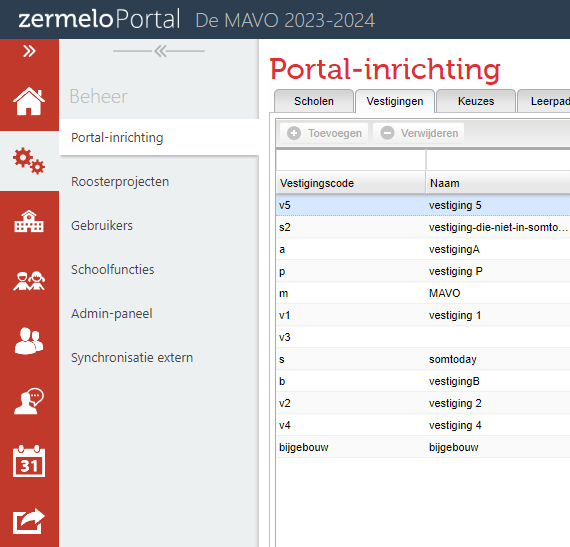
Find branches under Beheer > Portal-inrichting > Vestigingen in your Zermelo portal. The value you want is Vestigingscode.