

Page Animations
Page animations let you animate individual elements into the page when the page first appears on the display — bringing it to life beyond a static layout.
Adding an animation to an element
- Open a page in the Page Editor
- Click any element (text, image, shape, etc.)
- In the right panel, open the Animation section and click + Add animate in. The element gets a 1-second Fade
- Choose another Type if you like — changing the type replays the animation immediately so you can see it
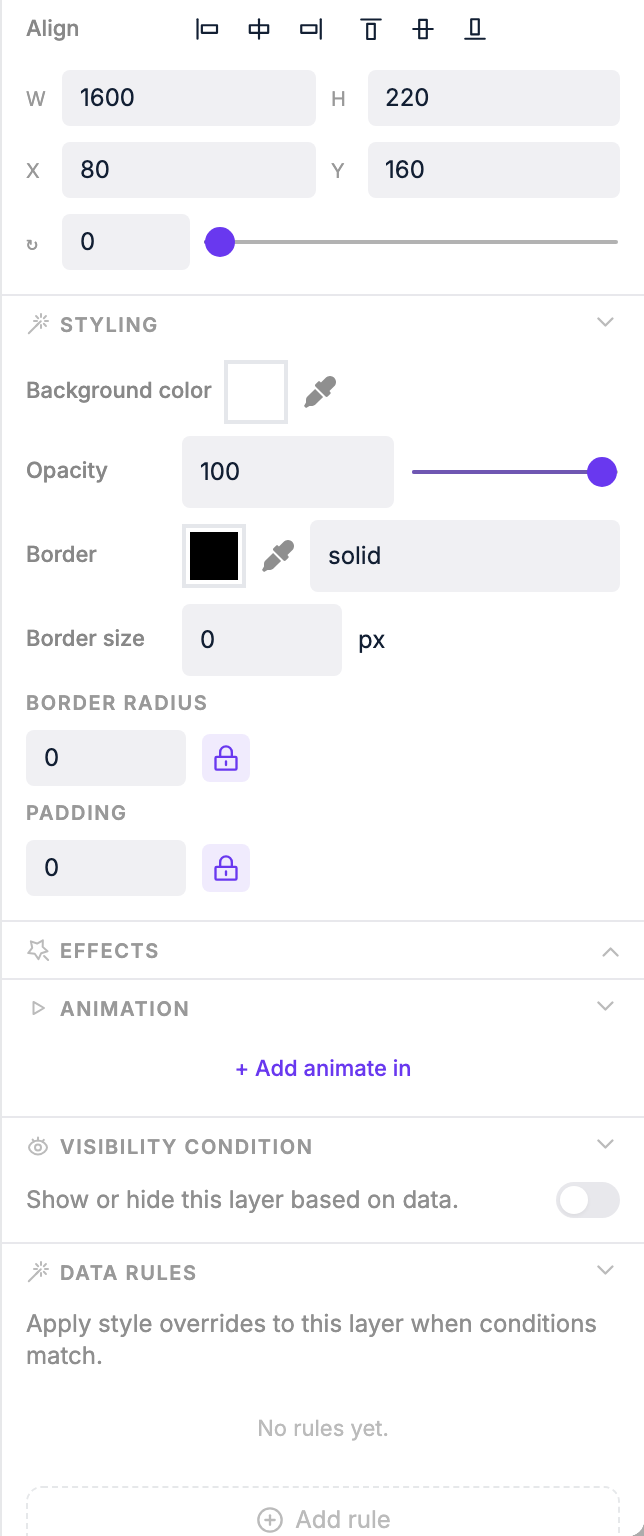
Animation settings
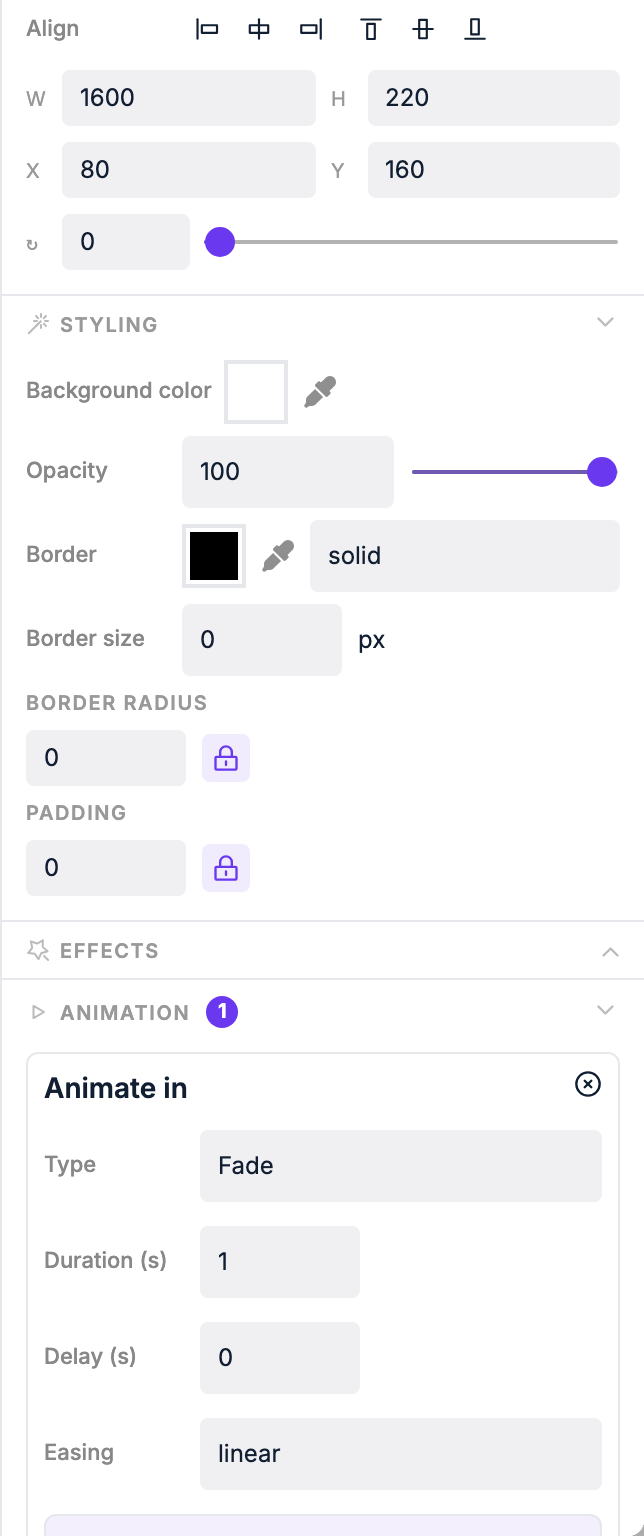
| Setting | What it does |
|---|---|
| Type | The animation style (see options below) |
| Duration (s) | How long the animation takes, in seconds |
| Delay (s) | How many seconds to wait before the animation starts |
| Easing | The acceleration curve: linear, ease, ease-in, ease-out, ease-in-out |
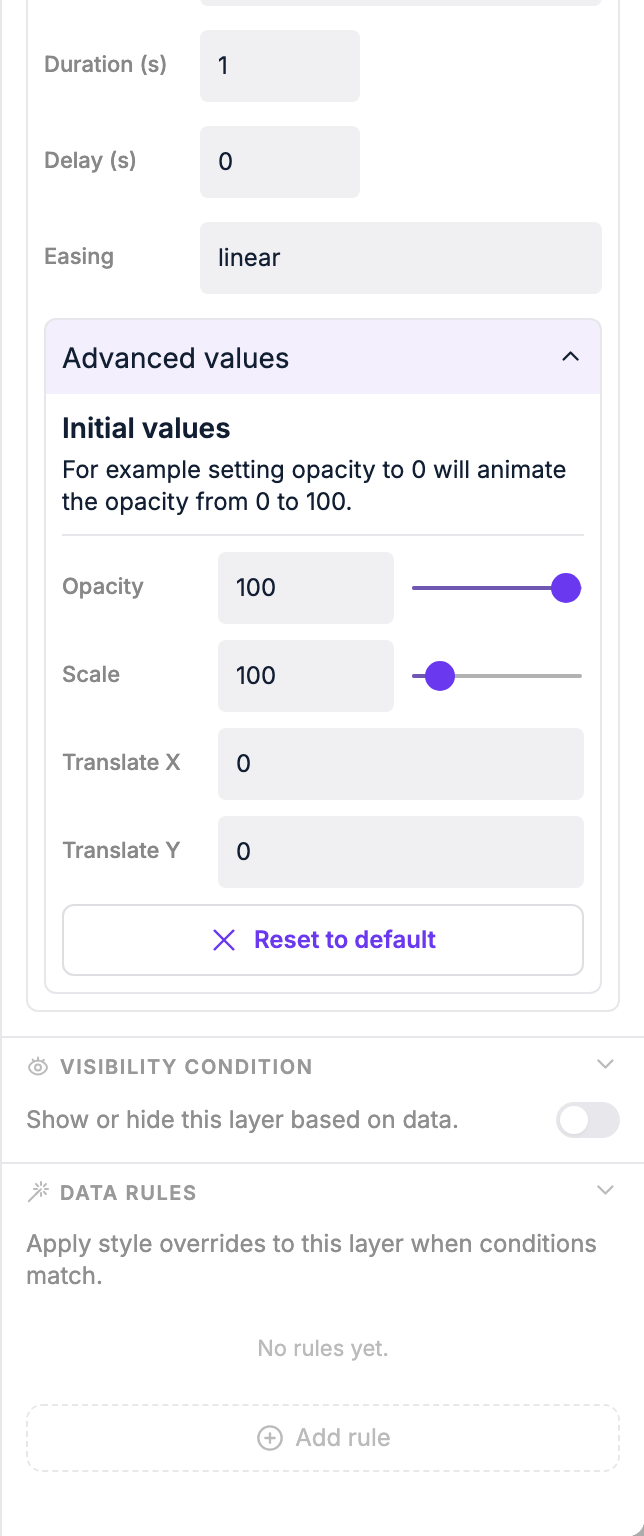
| Initial values | Under Advanced values: set the starting opacity, scale and position to combine multiple effects |
Animation types
| Type | Effect |
|---|---|
| Fade | Element fades in from transparent |
| Scale | Element scales up from a smaller size |
| Slide to left | Element slides in from the right |
| Slide to right | Element slides in from the left |
| Slide to top | Element slides in from the bottom |
| Slide to bottom | Element slides in from the top |
| Bounce to left | Element bounces in from the right |
| Bounce to right | Element bounces in from the left |
| Bounce to top | Element bounces in from the bottom |
| Bounce to bottom | Element bounces in from the top |
Combining animations
Using initial values you can stack effects. For example: set the type to Scale and the initial Opacity to 0 — the element will both scale in and fade in at the same time.
Expand Advanced values on the animation panel to reveal the Opacity, Scale, Translate X and Translate Y inputs for the element's starting state.
Replaying animations
After changing duration or delay, the animation doesn't replay automatically. Click Play animation in the toolbar at the bottom of the editor to replay all animations on the page at once.
Resetting
Click Reset to default under Advanced values to clear any custom initial values and start fresh. To remove the animation altogether, click the × next to Animate in.
TIP
Animations may not play on low-end devices (like some SOC displays). Test on your target hardware if smooth animations are important.