

Content Sharing
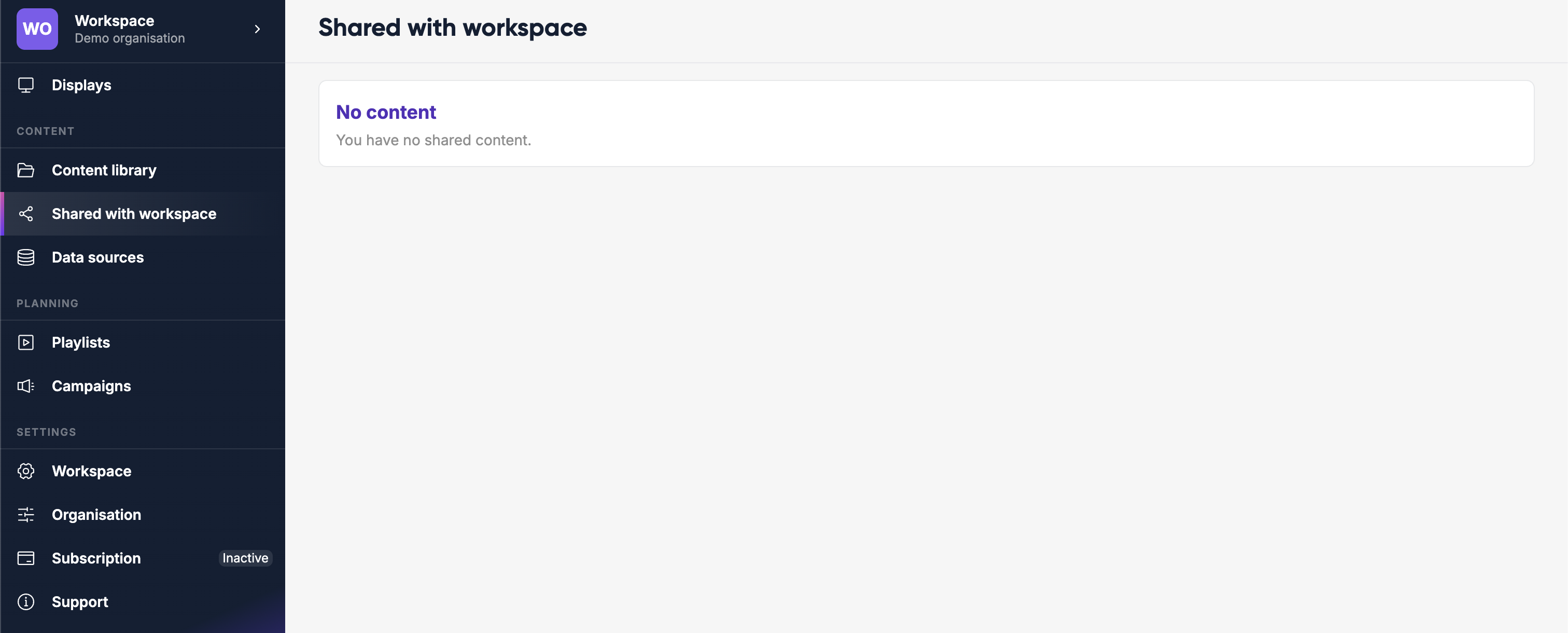
Lumicast lets you share content items across workspaces and with individual users. This is useful when one team manages brand assets or templates that other workspaces should be able to use — without giving those workspaces full access to yours.
What can be shared
Most content types support sharing: playlists, pages, media items, apps, links, campaigns and folders. Sharing is part of the Team plan. (Messages are still shareable for now but the type is deprecated — prefer pages.)
Sharing content
In the Content library, select an item and choose Share (inside a folder, the Share button in the top bar shares the folder itself). On a playlist or campaign, click the Invite button next to its contributors. This opens the sharing panel.
Enter an email address and click Share, or choose A workspace or An organisation below it. You can share with:
| Target | Effect |
|---|---|
| User | Invite by email address — they get access regardless of which workspace they're in |
| Workspace | Grants access to everyone in that workspace |
| Organisation | Grants access to everyone in your organisation across all workspaces |
You cannot share content with your own workspace or organisation (you already have access).
Roles
Every new share starts as Viewer. To change it, open the role next to the recipient under Who has access. The role controls what the recipient can do with the item:
| Role | What they can do |
|---|---|
| Viewer | View and use the content, but cannot edit it |
| Contributor | Edit and publish a playlist or campaign, or add and remove content in a folder. Only available for playlists, campaigns and folders |
| Editor | Edit the content |
| Admin | Edit (and publish) the content and manage who else has access to it |
Viewing content shared with you
Shared content appears in the Shared with workspace folder at the top of your Content library, once something has been shared with you. It shows all items that other workspaces or users have shared with your workspace.
You can use shared content in your own playlists and pages according to the role you've been given.
Managing existing shares
Open the sharing panel on a content item: Who has access lists everyone it's currently shared with. From here you can:
- Change someone's role
- Remove their access with Remove access
TIP
You can't change or remove your own access — your own entry in Who has access is read-only.