Install on Windows
Overview
This article explains how to run the Lumicast player on Windows.
The current player requires 64-bit Windows 10 or later, on an x64 or ARM64 processor. Windows 7, Windows 8, and 32-bit Windows are not supported.
Install the player
Download the player
On the Lumicast downloads page, find the Windows section. Choose x64 for an Intel or AMD PC, or arm64 for a Windows ARM device.
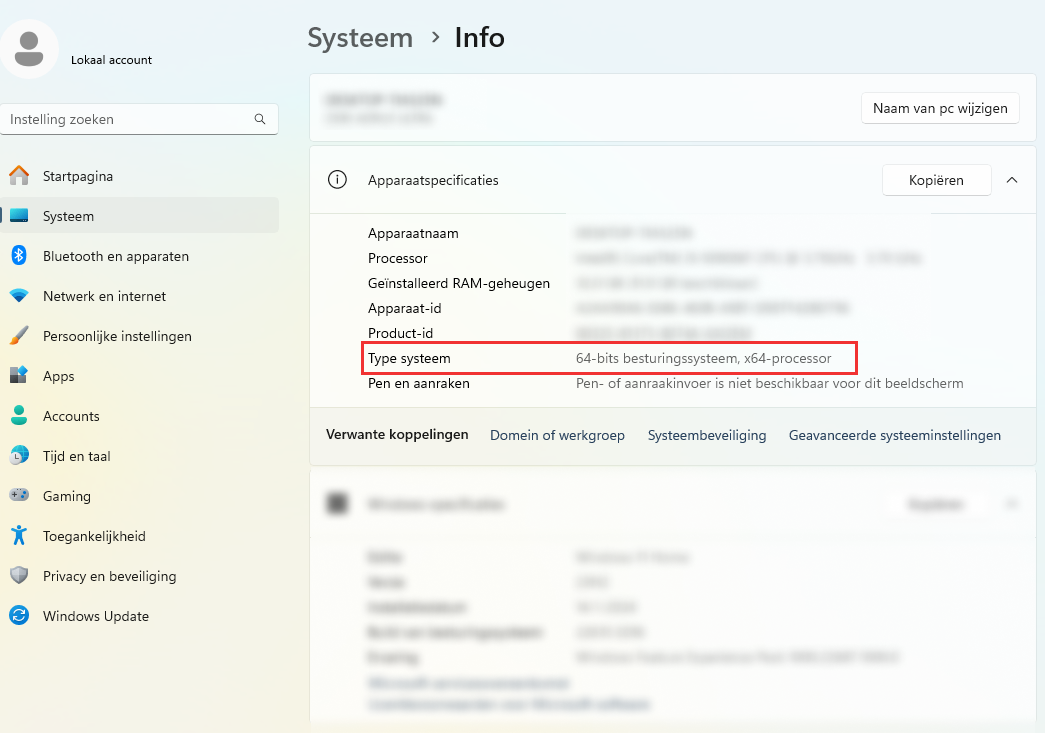
To check your Windows architecture:
Press
Windows key + Ito open Settings.Go to System > About.
Look for System type — you need a 64-bit operating system and an x64 or ARM64 processor. A 32-bit operating system must be upgraded before installing the current player.
Use the downloaded player
Run the installer. This automatically enables auto start — when the computer reboots, the Lumicast player launches again.
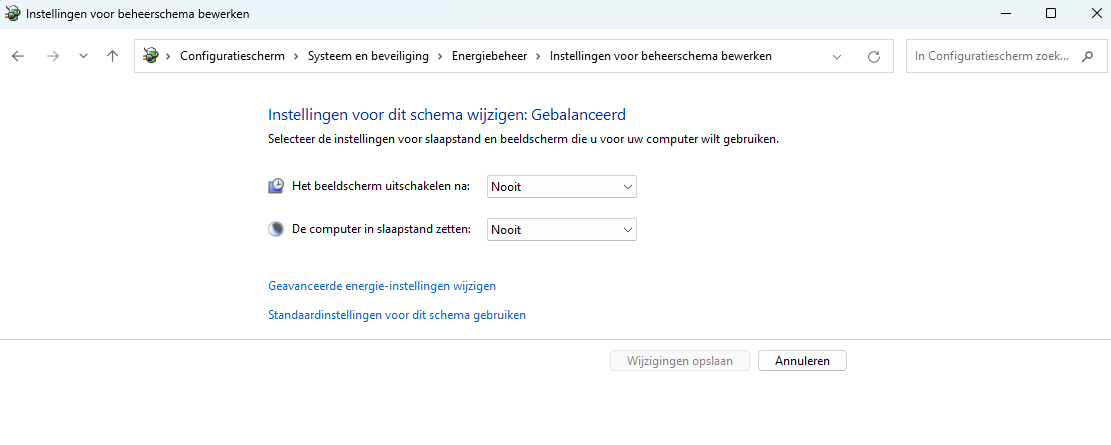
Keep your display on 24/7
- Open Control Panel > System and Security > Power Options.
- Find your active plan and click Change plan settings.
- Set Turn off the display and Put the computer to sleep to Never.
- Click Save changes.