

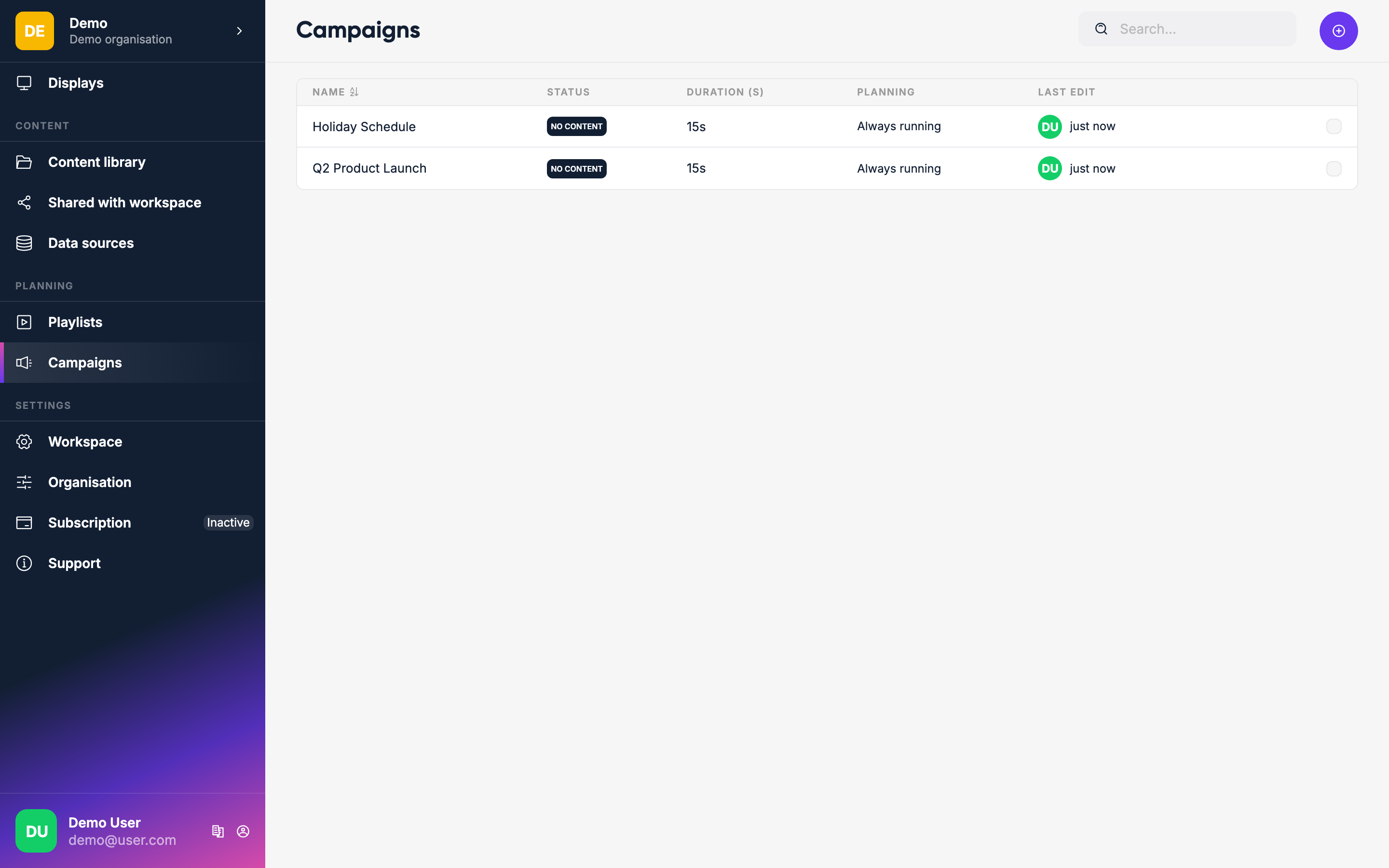
Campaigns
A Campaign is a way to run a set of content for a limited time across specific displays or playlists — without touching each display individually.
What campaigns are for
- Promotions — show sponsor or advertiser content on targeted displays for a specific period
- Events — announce an event at the right locations
- Public announcements — health, safety, or community messages across all relevant displays
In playlists vs on displays with a tag
When creating a campaign you choose where it plays:
In playlists
The campaign is merged into the targeted playlists. Inside those playlists, the campaign appears as an item that you can drag to any position.
On displays with a tag
The campaign is merged with whatever content the tagged displays are already showing:
- Display showing a playlist → the campaign item gets inserted into the playlist loop. Each loop, one campaign item plays in turn.
- Display showing a single item → Lumicast creates a temporary 2-item playlist: the existing item and the campaign item, alternating.
TIP
You can create a campaign before any playlists or display tags exist — it just won't target anything until you pick one. Add the targets later by editing the campaign.
Campaign placement
The Alongside other content setting decides how the campaign mixes with what's already playing:
| Placement | Effect |
|---|---|
| Merge | Campaign content is added alongside the existing content on the display |
| Overrule | Campaign replaces all existing content — only the campaign plays. It still merges with other overrule campaigns. |
Creating a campaign
Click Create campaign on the Campaigns page. If you don't have any campaigns yet, the form is already open.
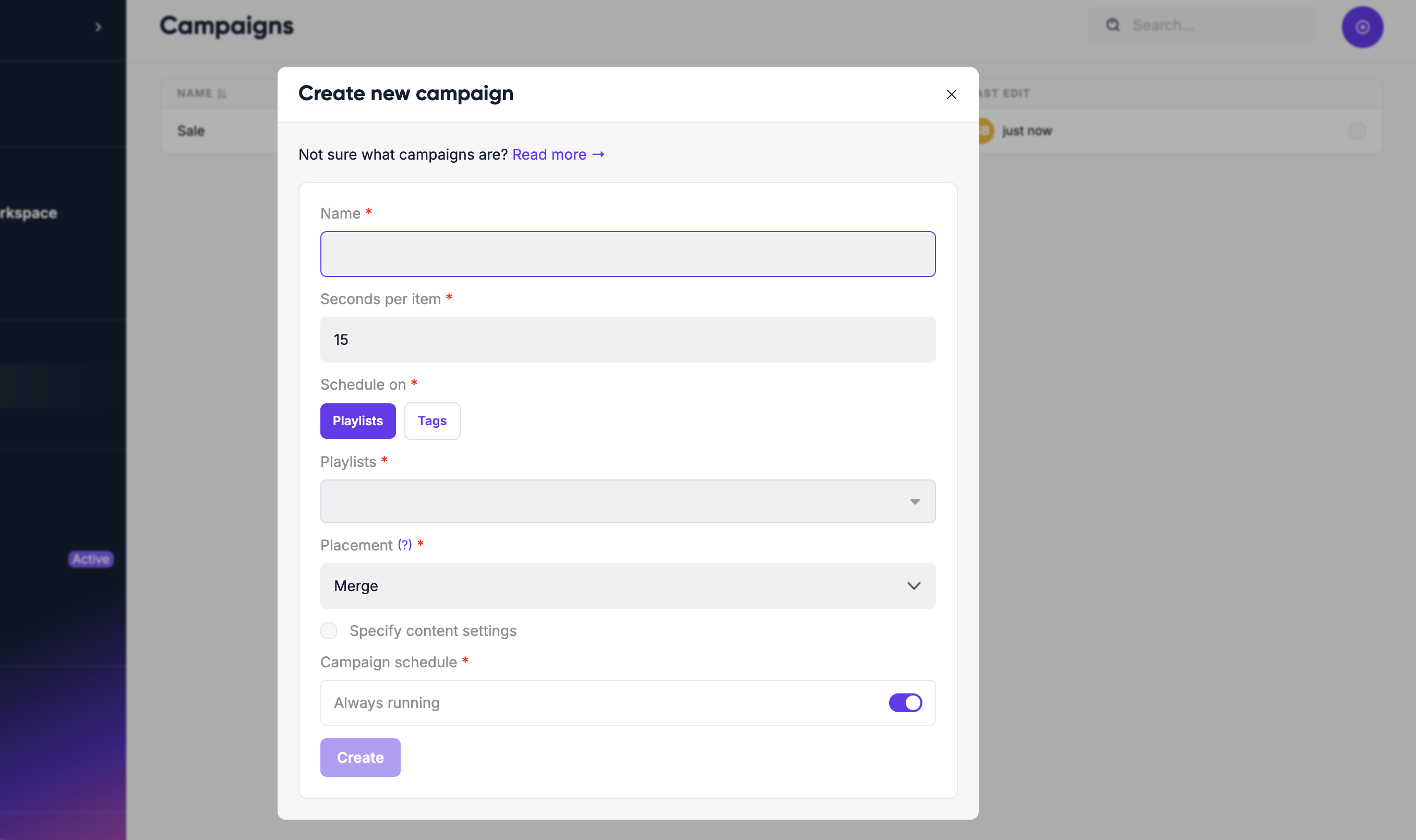
- Enter a name
- Under Where should this campaign play?, choose In playlists or On displays with a tag
- Select the playlists or tags to target
- Under When should it play?, keep Always running or pick On a schedule (see below)
- Set Seconds per item — how long each campaign item plays
- Click Create. The campaign opens; click Add item to add the content it should show
Optional settings
| Setting | What it does |
|---|---|
| Alongside other content | Merge (default) or overrule (see above) |
| Limit which content can be added | Only the content types you pick can be added to the campaign |
| Always running | Campaign plays until you stop it (default) |
| Between dates | First and last day the campaign plays |
| During set hours | Active hours within each day (e.g. only show during business hours) |
| Repeat | Repeat on a pattern — every N days, weeks, months or years. Needs Between dates first |
Recurring schedules
Turn on Repeat to run the date range again on a pattern. Under Ending you choose whether it repeats forever, until a date, or for a number of times:
| Pattern | Options |
|---|---|
| Daily | Runs every day, or every N days |
| Weekly | Runs on specific days of the week (e.g. Monday and Wednesday) |
| Monthly | Runs on a specific date number, or on a specific weekday (e.g. first Tuesday of each month) |
| Yearly | Runs once per year on a specific date |
This is useful for campaigns that repeat on a predictable schedule — for example, a Friday lunch special or a monthly safety announcement.
Activating and stopping
Campaigns start as a draft. Click Publish to make the campaign active. Targeted displays immediately pick up the campaign content. Later changes only reach displays after you publish again; Revert throws away unpublished changes.
To stop it early, delete the campaign, or edit its schedule and publish again. Or leave it running and it will stop automatically after its last scheduled day.