

Playlists
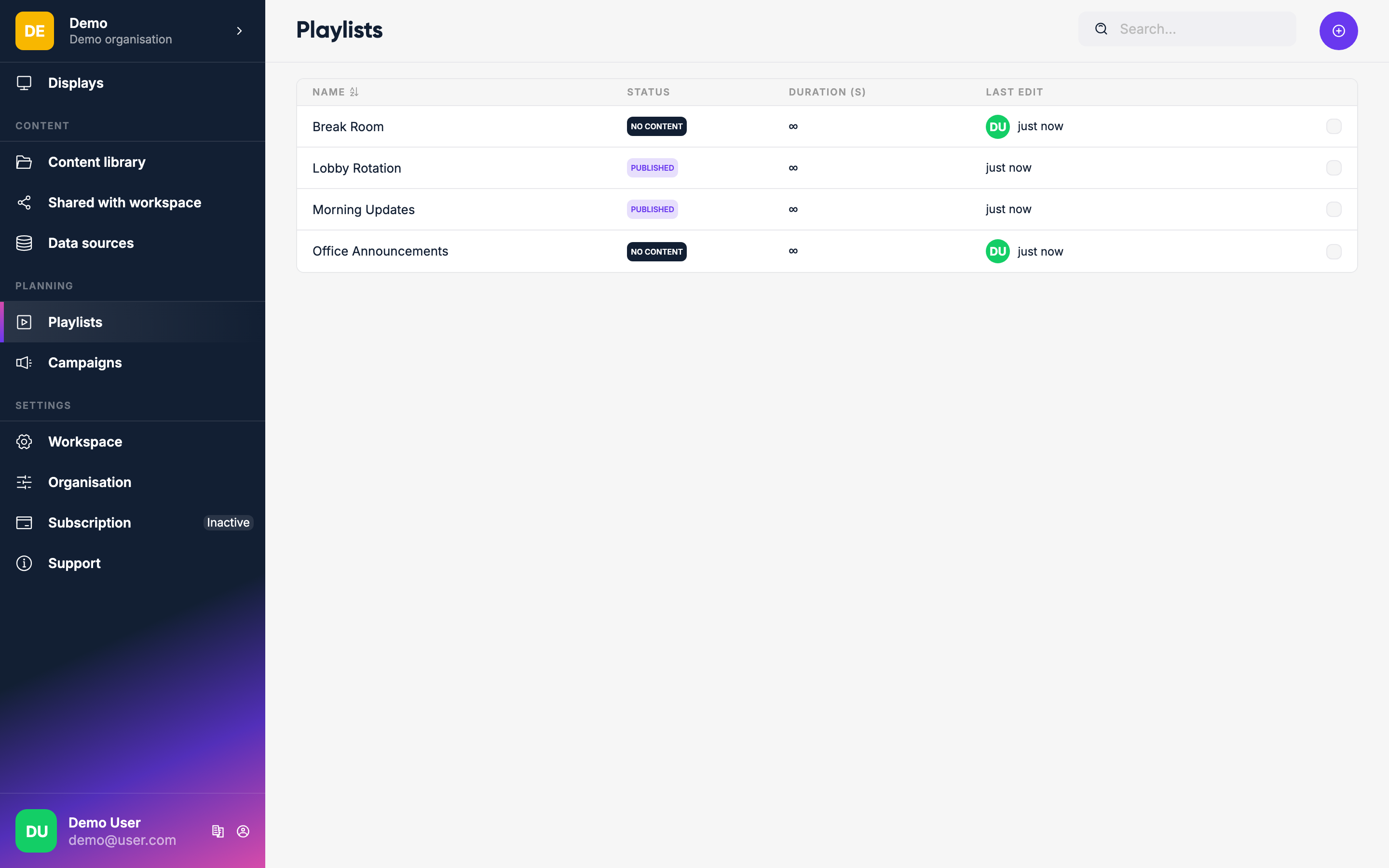
A Playlist is a sequence of content items that plays in a loop on a display. You control what plays, in what order, and for how long.
Creating a playlist
Click Create playlist on the Playlists page.
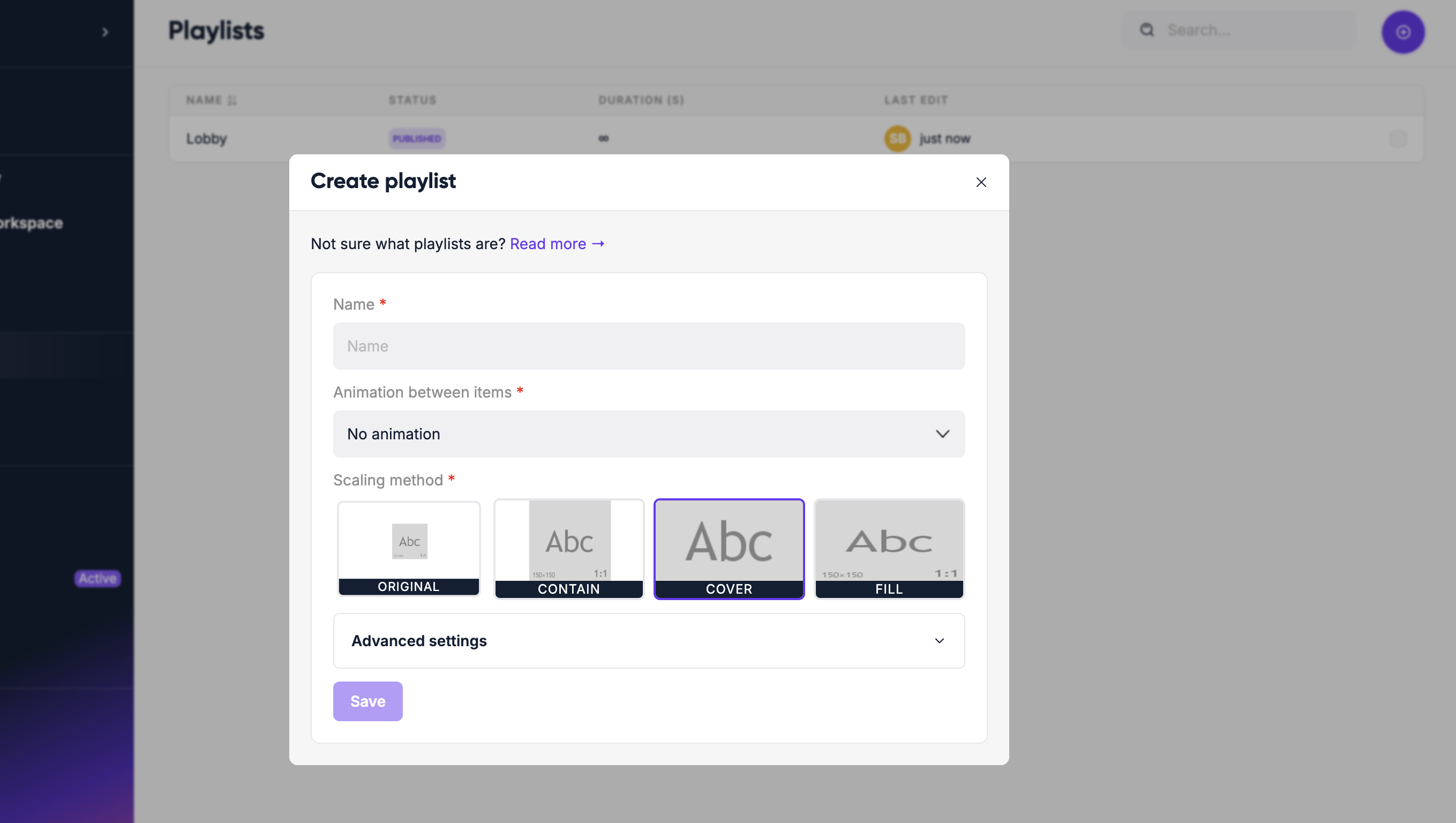
Give it a name. The other settings are optional:
| Setting | What it does |
|---|---|
| Fit | How images and videos are fitted to the display (see below) |
| Empty space | Only for Original and Contain: fill the space around content that doesn't cover the display with a blurred copy of it (Blurred) or leave it plain (Plain) |
| Transition | Transition effect between items (see options below). Older displays may show it as a hard cut |
| Limit the loop length | Under More options. One round of the playlist may not take longer than the number of seconds you set. Turn on Show one item per round to play only the next item each time the playlist comes around, for that length |
| Limit which content can be added | Under More options. Only the content types you pick can be added to the playlist |
| Overlays | Under More options. Put a page, like a logo bar, on top of every item. Add one per display shape; each display uses the one that fits |
Transition animations
| Option | Effect |
|---|---|
| No animation | Hard cut between items |
| Cross-fade | Items fade into each other |
| Scale | Next item scales into view |
| Slide | Next item slides in. Pick the direction with the arrow buttons next to it: left (slides in from the right), right (from the left), up (from the bottom) or down (from the top) |
Fit options
| Option | Effect |
|---|---|
| Original | Shows content at its original size, but shrinks it if it's larger than the display |
| Contain | Fits the content inside the display without cropping |
| Cover | Fills the display, cropping edges if needed |
| Fill | Stretches content to fill the display exactly |
Click Create to open the playlist.
Adding content
Click Add item to open your content library next to the playlist, then drag items into the playlist or select them to add them. You can add:
- Media items (images, videos)
- Pages you've designed
- Apps
- Links
- Other playlists (nested)
- Messages (deprecated — use Pages instead)
Setting durations
Each item shows its duration. Click an item and change Duration (s) to set how long it plays. Videos and apps with a length of their own use that length by default; other items get the default duration. To change several items at once, select them and click Set duration.
Scheduling items
Each playlist item can be set to only play during specific dates or times — for example, only during lunch breaks or only on weekdays. Click the item to set its planning, or select several items and click Set planning.
Reordering
Drag items up and down to change the playback order. The playlist loops continuously.
Publishing
WARNING
Playlists are drafts by default. Changes are not visible on your displays until you click Publish.
After making changes, click the Publish button to push the playlist to your displays. This lets you prepare changes in advance without affecting what's currently showing.
Assigning to a display
Once published, go to Displays, open a display, and click Set content. Select your playlist — it starts playing immediately.