

Displays
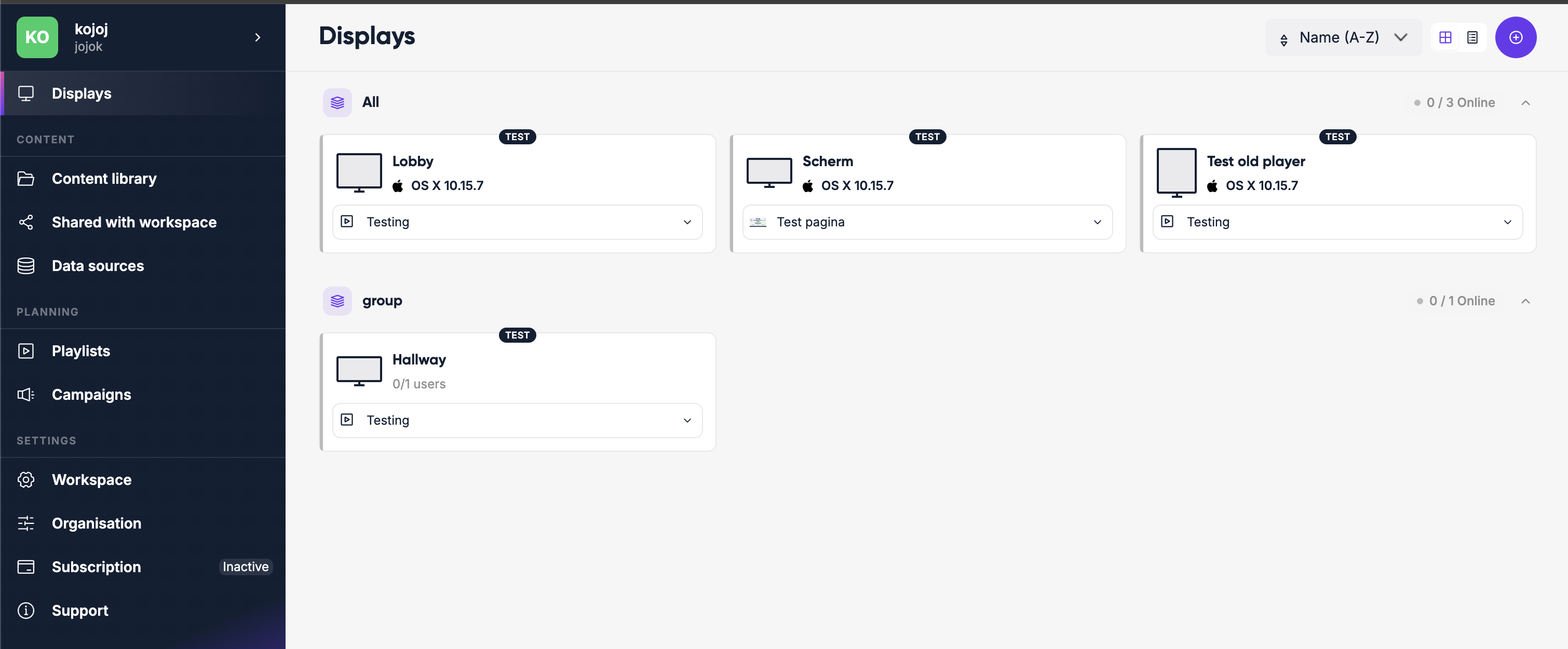
The Displays page shows all the displays in your workspace and their current status.
What is a display?
A display is the connection between Lumicast and a physical TV, monitor or signage panel. Once paired, anything you change in Lumicast gets sent directly to the physical display — from anywhere, instantly.
Display status
Each display shows whether it's Online (green), Offline (grey, with how long it has been offline) or Not connected (red — never paired with a player). Status updates in real time — no page refresh needed. The counters above the list show how many displays are in each state; click one to show only those displays.
You can switch between Grid and List view, and use display groups to keep large fleets organized. Groups can be collapsed to clear space.
Live vs test mode
When creating a display you choose between Live and Try it out (test mode). Both work identically — the difference is cost and duration:
| Test | Live | |
|---|---|---|
| Cost | Free | Billed monthly |
| Duration | Active for 30 minutes, then stops | Runs 24/7 |
Use test mode when you're evaluating or developing. Switch to live when the display is in production.
Connecting a new display
Click Add on the Displays page and choose Connect display. In a workspace without any displays, the connect form is shown right on the page.
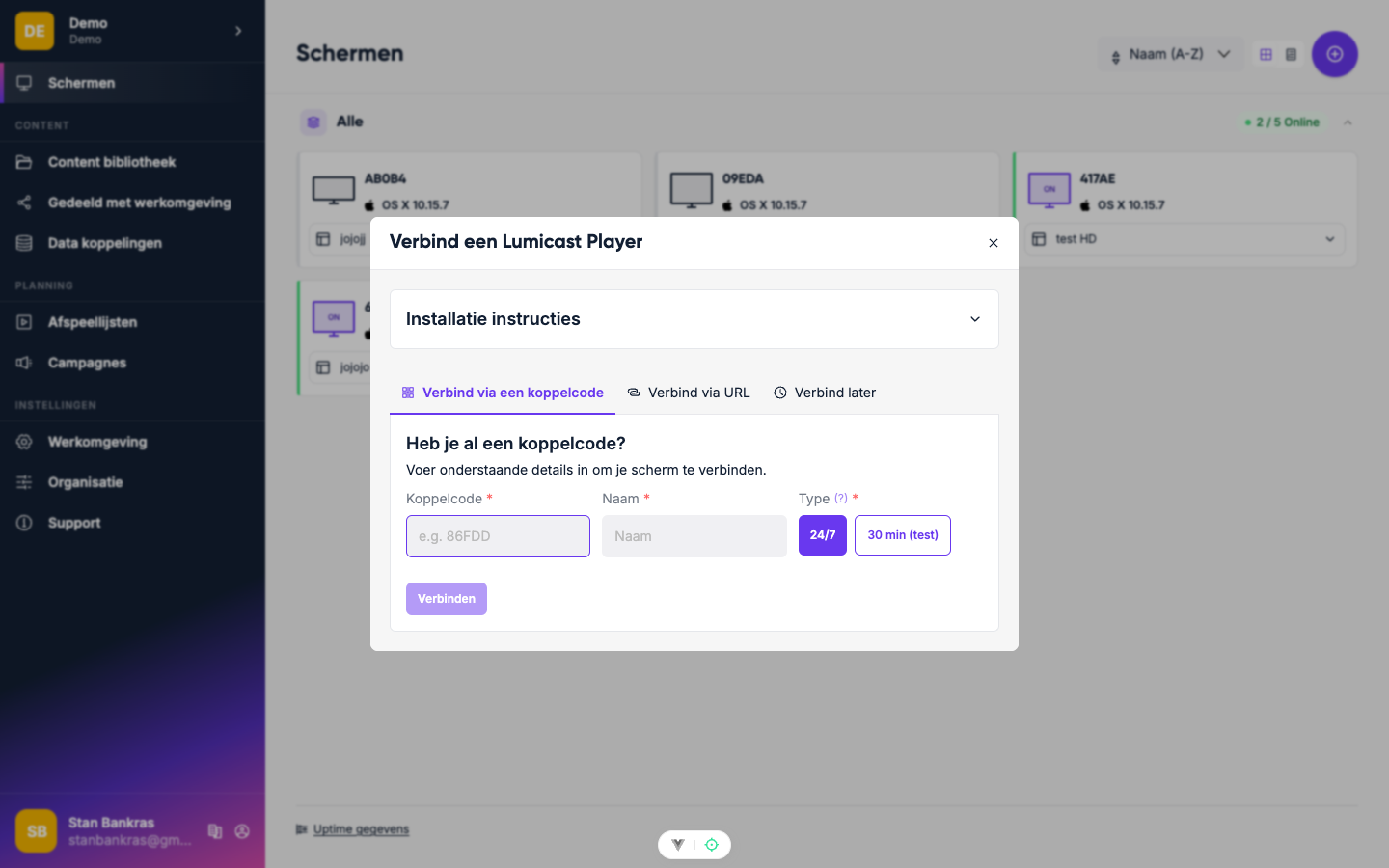
Keep Pairing code selected at the top (choose Link for a device that can't run the player, or Later to set up the display before the device is there), then fill in:
- Code on your display — the code the player shows after installing it. Open player.lumicast.com on the device if you don't have a dedicated player installed yet.
- Name — anything you'll recognise it by later (e.g. "Coffee Corner" or "Lobby Left")
- How will you use it? — Live (24/7, billed) or Try it out (30 minutes, free)
Click Connect. The display goes online immediately.
Assigning content
Once connected, click the content bar at the bottom of a display (or the Currently showing field on its detail page). Pick one of the recently used items, or choose Other content to open the content picker — browse or search your library, select what you want, then press Choose. The display updates within seconds.
Display detail & settings
Click any display to open its detail page. The header has Preview, Refresh, Reboot and Identify display buttons. The menu on the left has these sections:
- Overview — what the display is showing now, its platform, resolution, player software versions, uptime history, and its location (estimated from the network; drag the marker if it's wrong)
- Screenshots — capture what the display is showing right now with New screenshot (needs a recent player)
- General, Features and Access (link displays only: URL, password and connected users) — configuration
- Diagnostics — player logs
General
| Setting | What it does |
|---|---|
| Name | Shown in the display overview and in the service menu on the display |
| Tags | Assign tags for grouping — used when targeting campaigns |
| Mode | Switch between Live and Try it out |
| Orientation | Which way up the display hangs: 0°, 90°, 180° or 270°. Content turns with it |
| Metadata | Key-value pairs used by certain apps to show different content per display |
| Keep players showing the same video in sync | When enabled, synced displays playing the same video keep it in step |
| Enable daily automatic reboot | Define a nightly time window during which the player will restart (see below) |
Click Save to apply your changes.
Scheduled reboot
Tick Enable daily automatic reboot under General to have the player restart automatically each night within a time window you define. Set a From and To time — the player will reboot at some point between those two times.
The default window is 02:00–04:00. A player that can't reboot the device refreshes instead. This is useful for keeping devices healthy on long-running installations without manual intervention.
Features
Switches for player behaviour on this display, such as sending the highest quality media, turning off page or playlist animations, preloading the next item, sound, touch and click, and a notice when the connection is lost.
Diagnostics
Click Enable logs to start collecting detailed player logs. Logs are active for 1 hour (or until you click Disable logs) and stream in live below the button. Use logs to diagnose connection or playback issues.
Bulk actions
Select multiple displays using the checkboxes in the display list, then choose an action to apply to all of them at once:
| Action | What it does |
|---|---|
| Set content | Set the same playlist or content item on all selected displays |
| Identify display | Show a visual indicator on the display to locate a specific display in a large space |
| Refresh | Force all selected players to reload their content |
| Reboot | Restart the player app on all selected devices |
| Clear cache | Wipe locally cached content and re-download from Lumicast |
| Delete | Remove all selected displays from the workspace |
Service menu
On the display itself, press the M key (or OK on a remote control) to open the service menu. It shows the display name, connection status, and player version — useful for on-site troubleshooting.
Deleting a display
From the display overview, click the ⋯ menu on a display and choose Delete, then confirm. This immediately disconnects the device — there is no undo.