

Apps
Apps add dynamic, data-driven content to your displays. Instead of static images or manually updated pages, apps pull in live information automatically — schedules, feeds, calendars, announcements, and more.
Creating an app
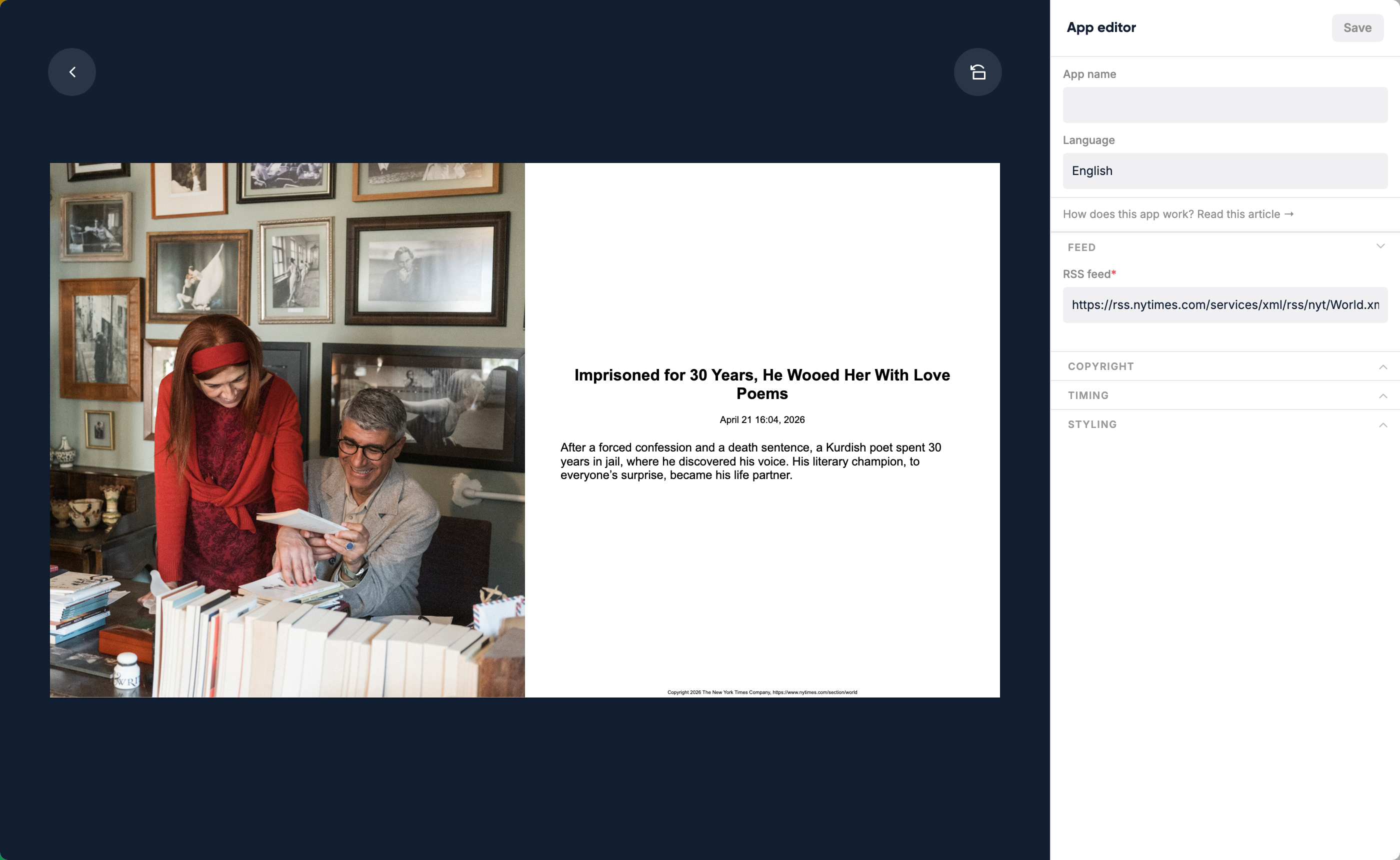
Go to Content > Add > New app and pick an app from the list of available apps. Each app opens with default data so you can immediately see what it looks like. The right panel shows all the settings; the left panel updates in real time as you make changes. Click Create app to save it.
Available apps
| App | What it shows | Requires connection |
|---|---|---|
| Algemeen Dagblad | Latest news from the Dutch newspaper AD on a topic of your choice | — |
| Audio Player | Play and visualize audio streams | — |
| BBC News | Latest news from the BBC on a topic of your choice | — |
| Building directory | Directory of buildings and facilities for wayfinding | — |
| Buienradar - Dutch/European weather | Rain radar for the Netherlands and Europe | — |
| Calendar | Events from a calendar ICS URL | — |
| Countdown | Countdown timer to a specific date and time | — |
| Date | Current month with today highlighted | — |
| Digital clock | Current time in days, hours, minutes, and seconds | — |
| Google Calendar | Events from a public Google Calendar URL | — |
| Google Trends | A Google Trends chart, added with its embed code | — |
| Grafana | A Grafana dashboard | — (username and password in the app settings) |
| Jira Open Issues | Open issues per priority and status from Jira | — (Jira API token in the app settings) |
| Latest posts from a company LinkedIn page | LinkedIn account (through a data source) | |
| Meetingroom Availability | Whether a meeting room is free or occupied | — |
| News ticker | A ticker line with your own news items, managed in Lumicast | — |
| NOS | Current news from the NOS (Dutch news) in a category of your choice | — |
| NS (Dutch railway) train schedule | Live Dutch railway departures for a station | — |
| NU.nl | Current news from NU.nl (Dutch) in a category of your choice | — |
| NU.nl video | Top news of the day as video from NU.nl | — |
| Public Transport | Departure times (NL, Belgium, Germany) | — |
| QR Code | QR code for any link or text | — |
| Quote | A random quote | — |
| RSS feed | Articles from any RSS feed | — |
| Sharepoint Birthdays | Upcoming birthdays from a SharePoint list | Microsoft account |
| Sharepoint List News | News items from a SharePoint list | Microsoft account |
| Sharepoint News | News items from a SharePoint site | Microsoft account (through a data source) |
| Social media showcase | Links to your company's social platforms | — |
| Teams | Latest messages from a Microsoft Teams channel | Microsoft account |
| Traffic information | Live traffic information (Netherlands) | — |
| Video stream player | Stream live or on-demand video with or without audio | — |
| Vimeo | Stream a video from Vimeo | — |
| Weather | Local weather forecasts | — |
| Webpage | Any web page displayed in a frame or as screenshot | — |
| YouTube | Integrate a YouTube video | — |
| Zermelo Schedule | School timetable from Zermelo | Zermelo (through a data source) |
Click a linked app name for its setup guide. Where a connection is needed, you create it while setting up the app.
Using an app
After creating and configuring an app you can:
- Add it to a playlist — it plays as one item in the rotation
- Assign it directly to a display — the display shows only this app
- Embed it in a page — position and resize the app within a larger page layout
Editing an app inside a page
When an app is placed on a page, you can edit it directly from the page editor without leaving the page — click the edit button that appears on the app element.
Suggesting new apps
Have an idea for an app that would be useful? Send it to team@lumicast.com with a short explanation of what it would show and why it would be valuable.