

Page Editor
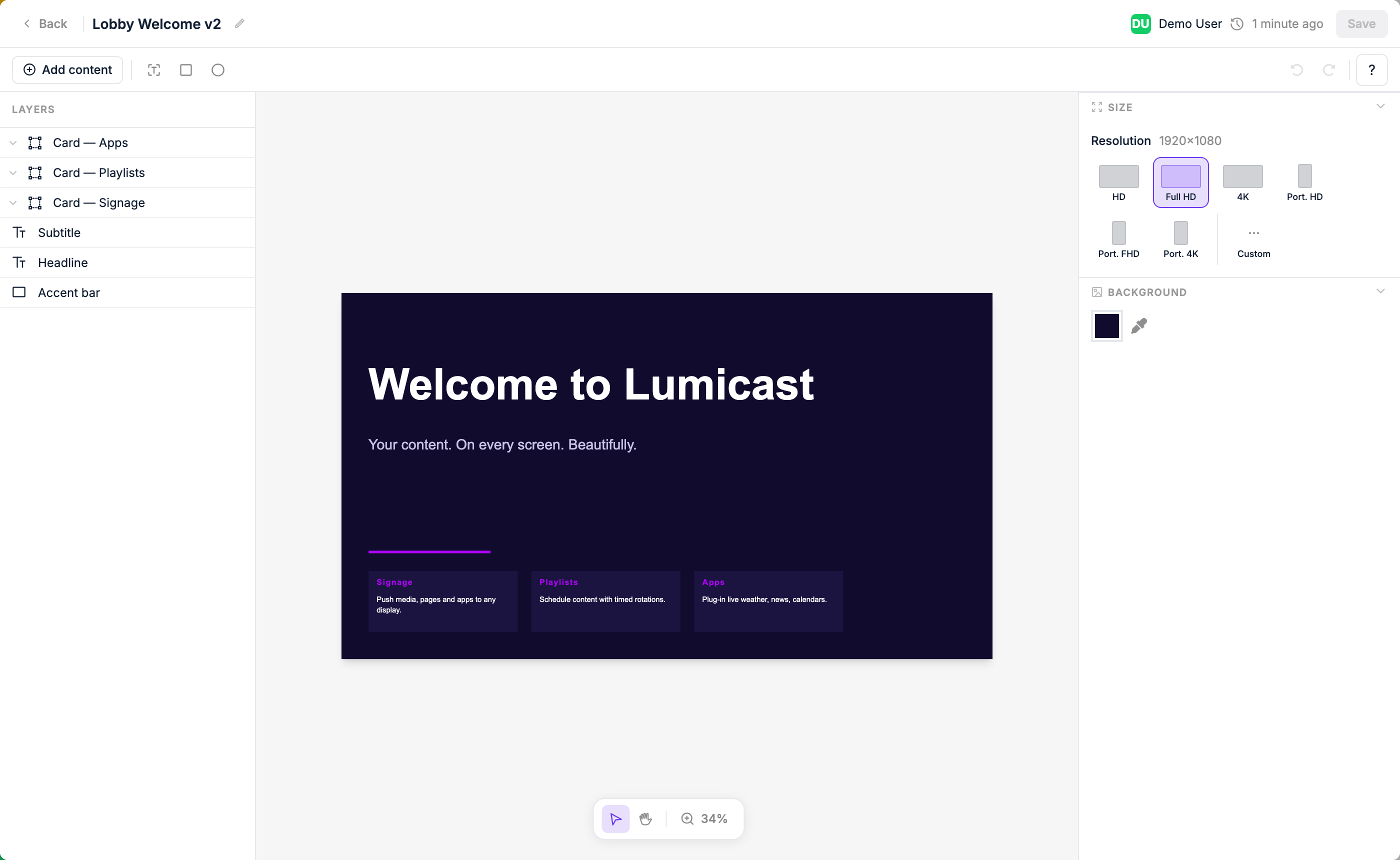
The Page Editor lets you design custom layouts for your displays — without any design software. Combine text, images, videos, shapes, and live data on a canvas that matches your display's dimensions.
Creating a page
In the Content library, click Add > New page. Pick a template or Blank page, enter a Name, and — for a blank page — choose the Resolution (a custom size, or the size of one of the displays in this workspace). Click Create page and the editor opens.
The canvas
The canvas represents your display. What you place here is exactly what will display. Elements snap to each other while you drag them; use the Positioning section in the right panel to align elements precisely.
Adding elements
Use the toolbar above the canvas to add:
| Element | What it adds |
|---|---|
| Text | A text block (shortcut T) — resize and style it freely. Can display live data from a data source. |
| Shape | Rectangle, circle, triangle, diamond, pentagon, hexagon, octagon, star, or parallelogram |
| Content | Click Add content to pick an image, video, app, playlist, or other item from your content library |
| Widget | A weather icon, from the Dynamic tab under Add content |
| Dynamic | From the Dynamic tab under Add content: a datasource image or datasource content, or ready-made time, date, and weather values |
| Page | An embedded nested page — pick it under Add content like any other content |
To create a group, select multiple layers and group them — groups aren't added from the toolbar. See Groups and repeating elements.
Clock and Weather
For a full clock or weather forecast, embed the Digital Clock or Weather App in your page. The Dynamic tab only adds single values, such as the time, the temperature, or a weather icon.
Selecting and moving elements
Click any element to select it. Drag to move. Drag the handles to resize or rotate. Right-click to rename, group, ungroup, or remove layers; copy and paste (Ctrl/⌘ + C, Ctrl/⌘ + V) to duplicate them.
Layers panel
The layers panel on the left shows all elements in the page. Click a layer to select it. Drag layers to reorder them (top of the list = front of the canvas).
Locking and hiding layers
Hover over any layer or group in the panel to reveal two icons on the right:
| Icon | What it does |
|---|---|
| Lock layer | Makes the layer (or group) unselectable on the canvas. Clicks pass straight through to whatever is underneath, and it's skipped when you drag to select. A locked layer is marked with a coloured lock icon and accent. Locking is saved with the page. |
| Hide in editor (eye) | Hides the layer in the editor only. This is a temporary view aid — it does not affect what actually plays, and it resets the next time you open the page. |
Locking a group applies to the whole group, including everything inside it. To select or edit a locked layer again, click its lock icon (Unlock layer).
Editing under a full-screen overlay
If you place an element that covers the whole canvas — for example a seasonal decoration meant to sit on top of every page — lock it so you can still click and edit the content beneath it. If the overlay is opaque and blocks your view, hide it while you work, then show it again when you're done.
Styling
With an element selected, the right panel shows all styling controls for that element.
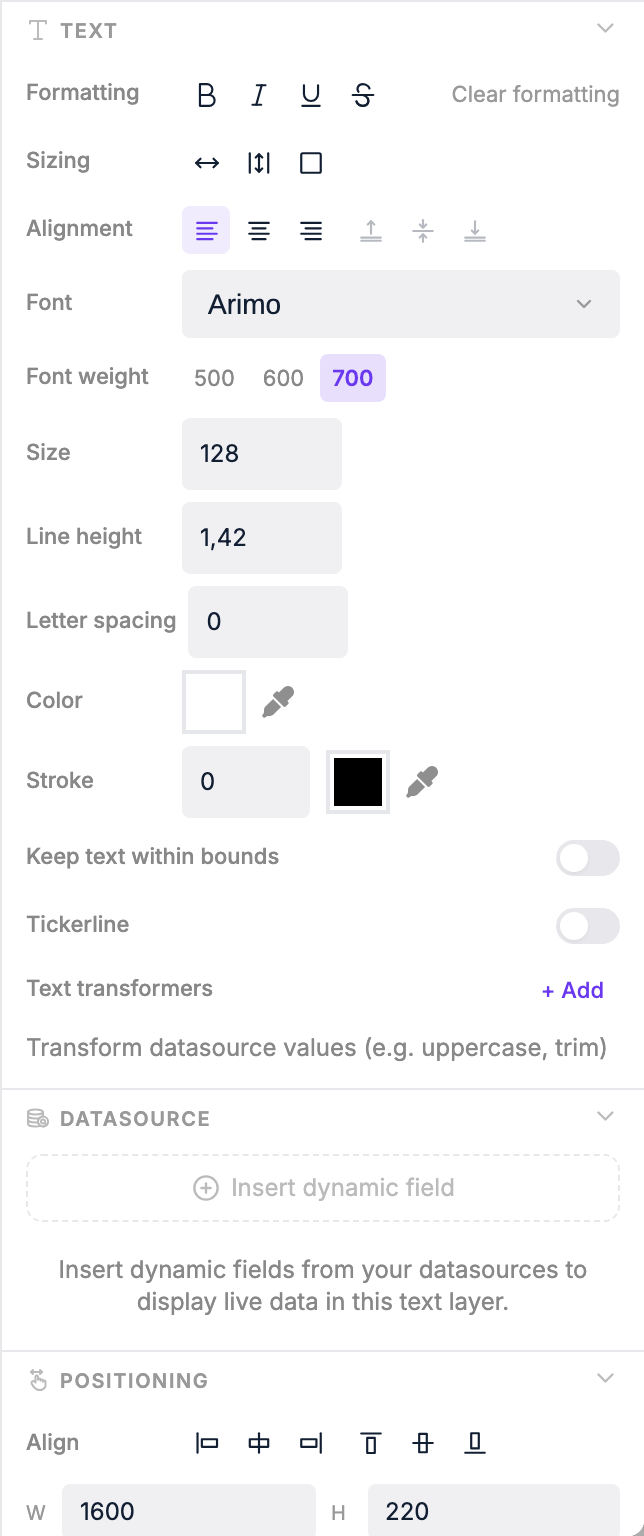
Use the right panel to change:
| Property | Options |
|---|---|
| Text (text only) | Font, font weight, size, line height, letter spacing, colour, stroke, alignment, and vertical alignment (top / center / bottom) |
| Sizing (text only) | Auto width — the element grows with the content; auto height — fixed width, height grows; fixed box — fixed size. In a fixed box, Keep text within bounds shrinks text that doesn't fit, and Max lines cuts it off with "…" |
| Background color / Opacity | Solid colour or gradient, and opacity (0–100%) |
| Border | Colour, Border size, and style: solid, dashed, dotted, double, groove, ridge, inset, outset |
| Border radius | Uniform or per-corner rounding (px) |
| Drop shadow | Under Effects: X offset, Y offset, blur, and colour |
| Padding | Per-side padding (px) |
| Rotation | 0–360°, under Positioning |
| Position & size | Exact pixel values for X, Y, width, and height, under Positioning |
| Scaling method (content) | Scale down, cover, contain, or fill — controls how media fits the element. With cover, a Focal point decides which part of an image stays in view |
Live data binding
Text elements can display live data from a Data Source, as well as time, date, weather, and context values like the display's name.
To insert a live value inside a text layer:
- Click into the text layer so the caret is where you want the value.
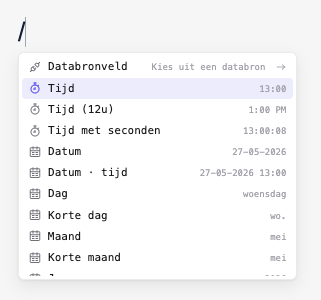
- Either type
/to open the slash menu, or click Add dynamic data in the right panel's Dynamic data section. - Drill in (Datasource field, Time, Weather, Context…) and pick the leaf.
The picker drops a chip at the cursor. Click any chip to open its bubble menu and change format / unit, edit the field path, or swap data source.
For a full walkthrough — mixing static text with chips, binding groups to arrays, and using cycle variables — see Binding Live Data to Pages.
Transformers
Apply transformers to format the text of a layer (including any chips inside it) before it's displayed. You find them under Text transformers at the bottom of the Text section in the right panel; click + Add to add one. A transformer applies to the selected text, or to all text in the layer when nothing is selected:
| Transformer | Effect |
|---|---|
| Uppercase | Converts text to ALL CAPS |
| Lowercase | Converts text to all lowercase |
| Capitalize | Capitalises the first letter of the text |
| Max length | Truncates text to a maximum number of characters and adds ... |
| Replace | Replaces every match of a search value (a plain string or a regular expression) with another value |
| Format date | Formats a date/time value using Day.js format strings (e.g. HH:mm for 24-hour time, DD MMM for day and month) |
| Round numbers | Rounds a numeric value to a chosen number of decimal places (e.g. 3.14159 → 3.14) |
You can chain multiple transformers together. They run in order, top to bottom. Date and weather temperature chips have their own format / unit controls in the chip bubble menu — you usually only need transformers for the surrounding text.
Ticker (scrolling text)
Text elements can be set to scroll across the display — useful for news headlines or announcements. In the right panel's Text section, turn on Tickerline, choose the Orientation (horizontal or vertical), Direction, and Speed, and pick a Behavior:
- Loop continuously — text scrolls continuously in one direction
- Scroll back and forth — text scrolls to the end, then reverses
- Scroll, then jump back — text scrolls to the end, then jumps back to the start
For the last two, Pause at edges (s) sets how long the text waits at each end. Combine the ticker with a datasource binding to show live, scrolling content automatically.
Groups and repeating elements
A group is a set of layers you've bundled together. Select multiple layers in the canvas or layers panel and group them (Ctrl/⌘ + G) — the group appears as a parent in the layers panel.
Once bound to a datasource array with Bind datasource, a group repeats over that array — all the layers inside render once per item. Use groups to display a dynamic number of rows or columns from live data, e.g. a list of upcoming train departures or calendar events.
For a full walkthrough of designing a row, grouping its layers, binding the group to an array, and pulling per-row values with the slash menu's Group field entry, see Binding Live Data to Pages.
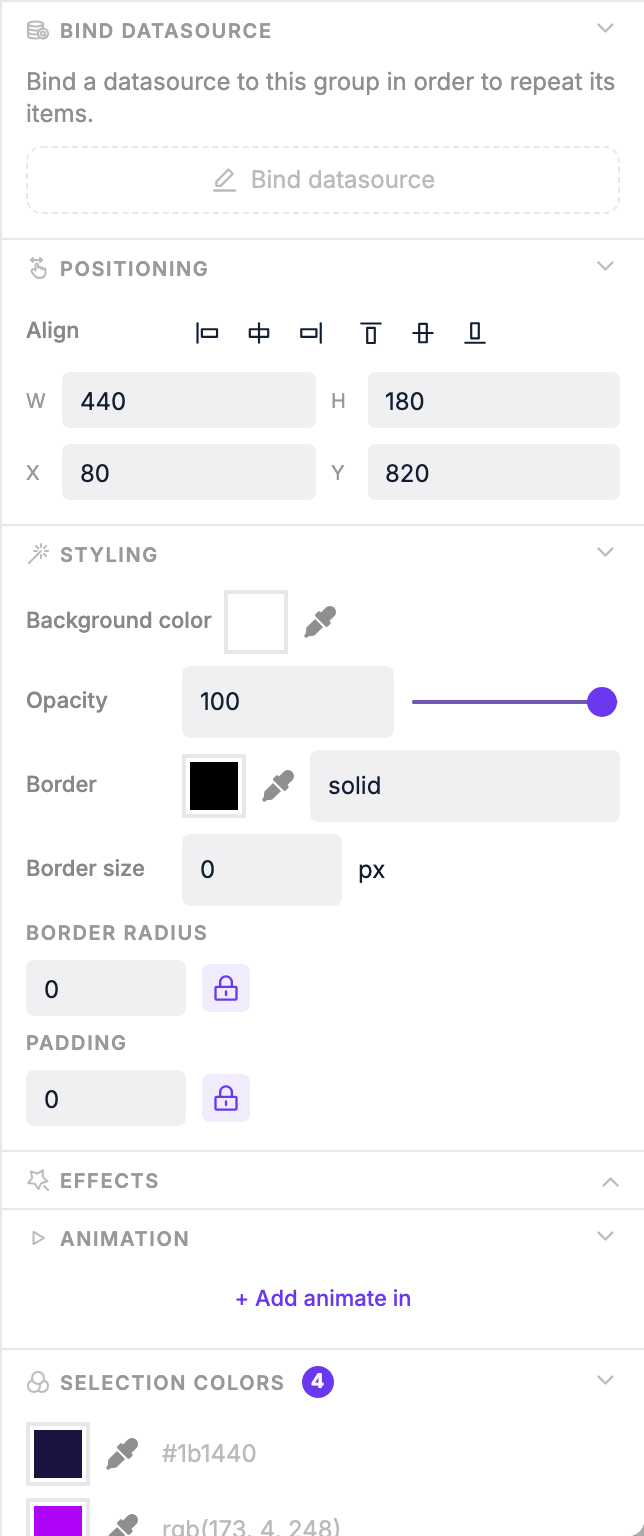
Group repeat settings:
| Setting | What it does |
|---|---|
| Direction | Lay out repeated items horizontally or vertically |
| Gap (px) | Spacing between repeated items |
| Items | Limit how many items are shown at once |
| Skip | Skip the first N items in the datasource |
| Step | How many items to move forward on each cycle (default: the number of items shown) |
| Cycle interval (s) | Automatically rotate through items over time; Wrap around keeps the last page full by continuing from the start |
Once bound to a datasource array, each layer inside the group can reference the current item's properties. When a cycle interval is set, the editor also offers Cycle dots and Cycle progress indicators for the group.
Saving
Click Save to save your changes; if you try to leave with unsaved changes, the editor asks whether to save them. The page is ready to use in playlists as soon as it's saved.